


Think linking bank accounts is always safe because the app looks official? Not true.
Linking lets one service peek at another account and sometimes move money.
That convenience can save fees and speed transfers, or it can expose routing numbers, balances, and transaction history if the link is weak.
In this post you’ll learn the six steps and verification methods that make links safe, what permissions to check, and simple checks to use so you can connect accounts without unnecessary risk.
Secure Steps for Linking Bank Accounts the Right Way
Linking bank accounts means you’re letting one bank or app peek into another account. Sometimes it can move money too. That’s how overdraft protection works, how you fund a brokerage, or how budgeting apps pull your spending data. But there’s real risk here. If the connection isn’t locked down, your routing number, balance, and every transaction you’ve made can get exposed or stolen.
Same-bank links are usually simple. Open a checking account where you already have savings, and the two accounts often show up linked automatically in your dashboard. Cross-bank links take more effort. You’ll enter routing and account numbers, then the bank or app runs a verification step to prove you actually own that external account. Verification is the security checkpoint. It stops someone who just knows your account number from linking your money to their app. We’ll walk through the full list of verification methods in the next section.
Modern linking uses multifactor authentication, encrypted connections, and tokenized access so your credentials stay out of third-party hands. Most banks and trusted apps never see your actual password. Instead, they get a one-time token that expires or grants read-only access. That’s the difference between a safe link and a risky one.
To link accounts securely, follow these six steps:
- Open the bank’s official app or website. Never click a link in an email or text message claiming to start the linking process.
- Look for “Link External Accounts,” “Move Money,” or “Enroll Account” in the menu. Location varies by institution.
- Confirm the browser address bar shows HTTPS and a padlock icon. On mobile, confirm the app publisher matches your bank’s verified developer name.
- Authenticate with your password and complete any multifactor prompt (code, push notification, or biometric scan).
- Enter the external account’s routing number and account number, or sign in through a secure OAuth flow if the app offers instant verification.
- Complete the required verification step—microdeposit confirmation, instant sign-in, or one-time passcode. Then review the permissions granted and turn on transaction alerts for the newly linked account.
Understanding Linked Bank Accounts for Safer Connections

Linked accounts are legally separate, but they share a data pathway. Your checking account stays insured under one account number, your savings under another. Yet both appear in a single dashboard and allow instant or same-day transfers. Banks use linking to offer overdraft backup. If your checking balance hits zero, the bank pulls from your linked savings to cover the shortfall. Third-party apps use linking to pull transaction history for budgeting, to pay bills, or to invest spare change.
When you link through an aggregator like Plaid, the connection is typically read-only. The app receives a tokenized credential that lets it see your balance and recent transactions but can’t initiate withdrawals without a second authorization step. That’s different from giving the app your username and password, which would grant full control. Always check the OAuth consent screen or linking agreement to confirm whether the access is read-only or read-write.
Common benefits and risks of linked accounts:
- Benefit: Overdraft protection pulls from savings automatically, avoiding NSF fees.
- Benefit: Instant or next-day transfers between your own accounts without writing checks or visiting a branch.
- Benefit: Budgeting apps categorize spending in real time by reading transaction feeds.
- Risk: Breach at one institution can expose balances and account numbers for all linked accounts.
- Risk: Granting write access to a third-party app means it can move money. If the app gets compromised, your funds can be drained before you notice.
Verification Methods That Make Bank Linking Secure
Verification proves you own the external account before any transfers happen. The bank or app needs to confirm that the routing and account numbers you entered actually belong to you, not to someone who guessed or stole the digits. Different methods balance speed against security, and the safest approach depends on whether you’re linking to another bank, a payment app, or a brokerage platform.
Microdeposits are the traditional method. The bank sends one or two small deposits (usually between one cent and twenty-five cents) to the external account within two to three business days. You log in to that external account, check the exact penny amounts, then return to the linking app and enter those amounts to prove you have access. It’s slow, but it never requires sharing your username or password. The downside: a three-day wait before you can move any money.
Instant verification skips the wait by asking you to sign in to your external bank through a secure window provided by an intermediary or the bank itself. You type your username and password into a form that looks like your bank’s login page, and the system confirms your identity in real time. Behind the scenes, the connection uses OAuth or a direct API call, so your credentials are never stored by the linking app. Instead, a temporary token is issued that grants permission to read your balance or initiate a transfer. This method is fast (often completing in under a minute), but it does require you to trust that the sign-in window is legitimate and that the intermediary protects your login session with strong encryption.
Multifactor authentication and biometric checks add a second layer. After you enter your routing and account numbers, or after you sign in through an OAuth flow, the bank sends a one-time code to your phone, asks for a fingerprint, or prompts a push notification on your registered device. Attackers who steal your password still can’t link the account without also compromising your phone or bypassing your biometric lock. Banks that support hardware security keys (small USB devices that generate cryptographic proofs) offer the strongest MFA option, though adoption is still limited in consumer banking.
| Method | Speed | Security Level | Ideal Use Case |
|---|---|---|---|
| Microdeposit | 2–3 business days | High (no credential sharing) | Cross-bank linking when you prefer not to share login credentials |
| Multifactor Authentication (MFA) | Seconds to minutes | Very High (requires second factor) | Any linking flow, especially important for write-access connections |
| OAuth Instant Sign-In | Under 1 minute | High (tokenized, no stored password) | Payment apps, aggregators, brokerages that offer OAuth consent screens |
| Biometric (fingerprint, face) | Seconds | Very High (device-bound) | Mobile app linking where the device supports biometric unlock |
Comparing Secure Bank-Connection Methods
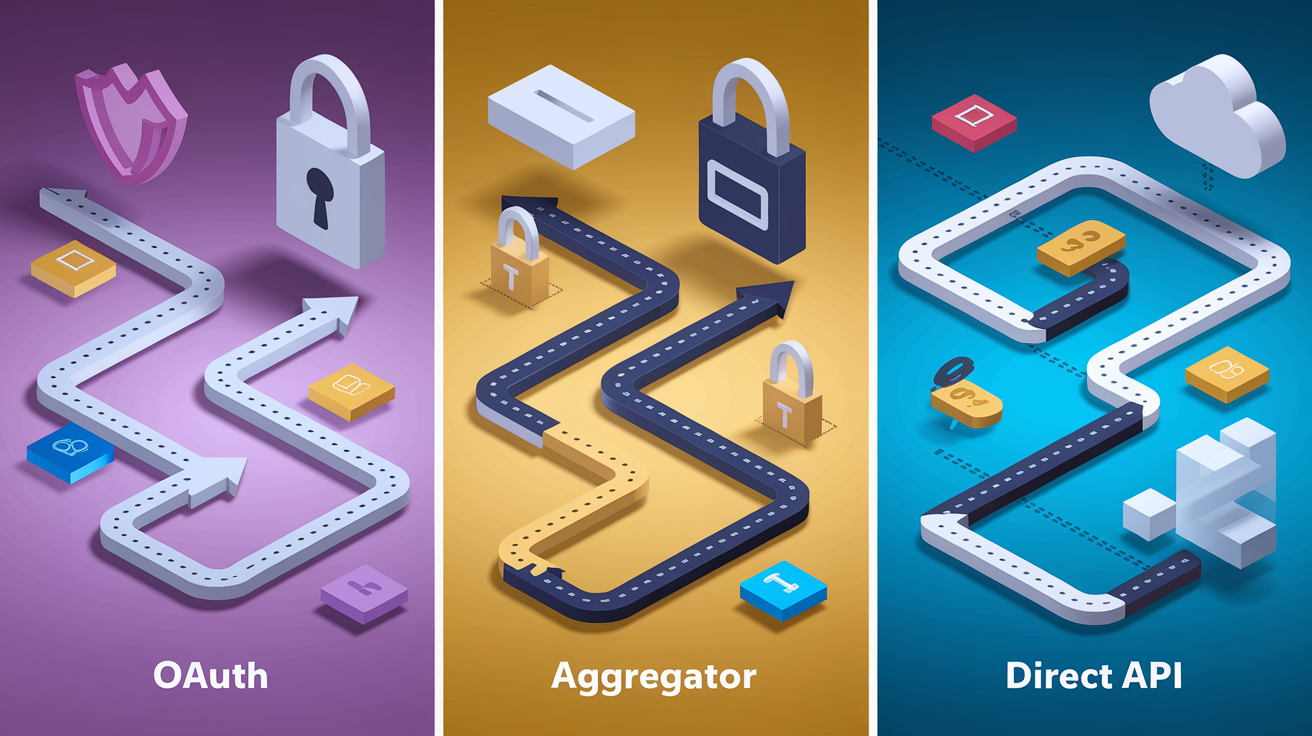
Not all linking flows are built the same. The method you choose determines who sees your password, how long the connection lasts, and whether a hacker who breaches the third-party app can also drain your bank account. Understanding the technical differences helps you pick the safest option when a bank or app offers more than one way to connect.
OAuth Connect Flow
OAuth is the standard for app-to-app authorization. When you link a bank account through OAuth, the app redirects you to your bank’s official login page in a secure pop-up or in-app browser. You sign in directly with the bank, and the bank issues a temporary token to the app. The app never sees your username or password, only the token, which grants limited permissions like “read transaction history” or “initiate a one-time transfer.” Tokens can be revoked from your bank’s security settings at any time, and they usually expire automatically after a set period (often 90 days to a year).
OAuth is common in payment apps, budgeting tools, and investment platforms. The consent screen shows exactly what the app is requesting: read-only access to balances, permission to pull transaction history, or the ability to initiate ACH transfers. Always review that screen before clicking “Allow.” If an app asks for more permissions than it needs (like requesting write access when it only displays balances), treat it as a red flag.
Aggregator-Based Tokenized Linking
Aggregator services sit between your bank and the app you’re using. The aggregator connects to hundreds of banks through a mix of OAuth, direct APIs, and (less commonly now) credential-based screen-scraping. When you link through an aggregator, you provide your bank login to the aggregator’s secure form, and the aggregator logs in on your behalf to retrieve account data. It then passes that data to the app in a tokenized format, so the app itself never handles your raw credentials.
The advantage is speed and broad compatibility. Aggregators support thousands of institutions, including small credit unions that don’t offer OAuth. The trade-off is trust. You’re relying on the aggregator to protect your login session, store credentials securely if at all, and use encryption during every step. Reputable aggregators publish third-party security audits and comply with data-protection standards, but free or unknown aggregators may monetize your transaction data by selling anonymized spending patterns to advertisers.
Direct Bank API Integrations
A handful of banks offer direct API connections to approved third-party apps. In this model, the app communicates with the bank’s servers through an official, documented interface that uses OAuth tokens and requires the bank’s explicit approval of the app. Your credentials stay between you and the bank. The app receives only the data the API is designed to share, and the bank can monitor every API call for unusual behavior.
Direct API linking is the gold standard for security because it eliminates intermediaries and gives the bank full control over access. The downside is limited availability. Not all banks provide public APIs, and those that do often restrict access to a short list of partners. If your bank and app both support a direct API connection, choose it over aggregator-based linking.
Manual Microdeposit Verification
Manual verification is the slowest but the most private. You provide only your routing and account numbers (no usernames, no passwords). The linking service deposits one or two small amounts into that account, and you confirm the amounts to prove ownership. Because you never share login credentials, this method is immune to credential-stuffing attacks, phishing that targets passwords, and any risk that the linking service might store or mishandle your login.
The wait time (typically two to three business days) makes microdeposit verification impractical for instant-funding scenarios like same-day bill pay or real-time investment transfers. It’s best suited for one-time setups where you’re linking a savings account to a new brokerage or adding an external checking account for occasional transfers. Once verified, future transfers usually process within one to five business days, depending on the institutions involved.
Mobile and Desktop Procedures for Secure Bank Linking
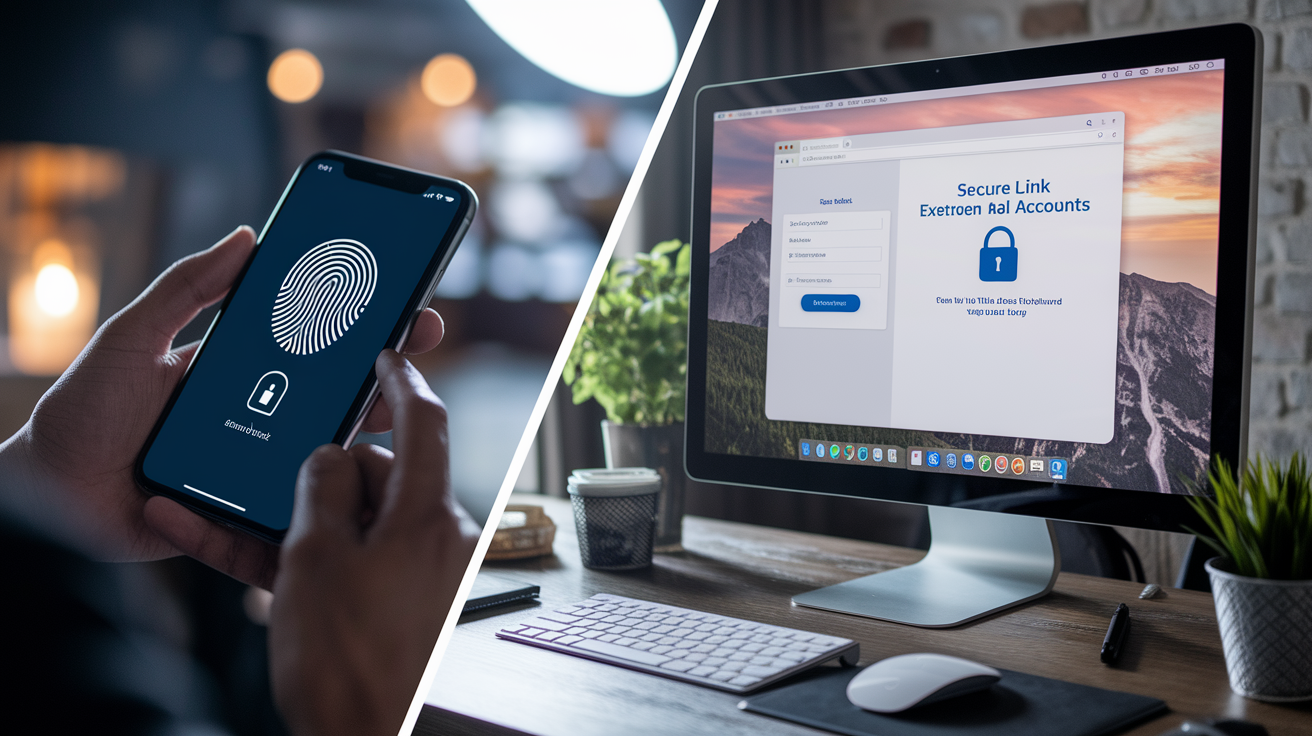
Linking from a phone feels different from linking on a laptop, and the security steps vary slightly. Mobile apps often streamline authentication with biometrics and push notifications, while desktop browsers rely on typed credentials and codes sent by SMS or email. Knowing the secure path for each platform helps you avoid accidentally exposing your account during setup.
On mobile, the official bank app is the safest starting point. Download it from the App Store or Google Play, and confirm the developer name matches your bank’s verified publisher before installing. Once you open the app, navigate to “Transfer,” “Link Accounts,” or “Move Money” (the exact label varies by institution). Authenticate with your fingerprint, face scan, or the password you set for the app. If the app offers an option to link instantly by signing in to your external bank, you’ll see an embedded login screen that looks like your bank’s mobile site. Check the top of that screen for a security icon or a note confirming the connection is handled by your bank or a named aggregator. Enter your credentials only if you recognize the flow. If it looks unfamiliar or asks for information your bank doesn’t normally request, back out and call your bank to confirm.
On desktop, start by typing your bank’s URL directly into the address bar. Never click a link from an email or search result that could be a phishing site. Look for the padlock icon next to the address and click it to verify the SSL certificate matches your bank’s name. Sign in with your username and password, then complete any two-factor prompt sent to your phone or email. Find “Link External Accounts” or “Add Account” in the main menu, and you’ll typically see a form asking for a routing number and account number. Some banks offer a search feature where you type the external bank’s name and sign in through an OAuth pop-up. If that option appears, it’s usually faster and safer than manual entry because it skips the microdeposit wait.
Mobile linking (6 secure steps):
- Download your bank’s official app from the App Store or Google Play and verify the developer/publisher name.
- Open the app and authenticate with biometrics or the app-specific password you created during initial setup.
- Navigate to “Link Accounts,” “Transfer,” or “Move Money” in the app menu.
- If instant linking is offered, sign in to your external bank through the embedded OAuth screen. Confirm the screen displays your external bank’s branding and a security note.
- Complete any multifactor prompt (approve the push notification, enter the one-time code, or scan your fingerprint again).
- Review the permissions (read-only or read-write), enable transaction alerts for the linked account, and disable Bluetooth and AirDrop before connecting on public networks.
Desktop linking (6 secure steps):
- Type your bank’s URL directly into the browser address bar and confirm the padlock icon and correct domain name.
- Sign in with your username and password, then complete the two-factor code sent to your phone or email.
- Locate “Link External Accounts,” “Add Account,” or “Move Money” in the main navigation or settings menu.
- Choose instant verification (OAuth sign-in pop-up) if available, or enter routing and account numbers for manual microdeposit verification.
- If using OAuth, review the consent screen for requested permissions and confirm you recognize the external bank’s login page.
- For microdeposit verification, wait two to three business days, log in to the external account to retrieve the deposit amounts, then return to the linking bank and enter those amounts to complete setup.
Security Best Practices to Protect Linked Bank Accounts
Strong passwords are the first line of defense, but they’re not enough on their own. A password manager helps you create and store unique, complex passwords for every financial account. Aim for at least 12 characters with a mix of uppercase, lowercase, numbers, and symbols. Avoid common words, keyboard patterns like “qwerty,” or personal information like birthdays that attackers can guess from social media. Update your banking passwords at least every three months, and change them immediately if you receive a breach notification from any service where you’ve reused that password.
Multifactor authentication should be enabled on every account that touches your money. Banks, payment apps, and investment platforms all offer MFA, usually free except for standard SMS carrier fees. An authenticator app like Google Authenticator or Authy is more secure than SMS codes because text messages can be intercepted through SIM-swap attacks. If your bank supports push-based MFA (where you approve a login by tapping a notification on your registered phone), enable it. Hardware security keys, small USB devices that generate cryptographic proofs, offer the highest protection against phishing but are still rare in consumer banking.
Network hygiene matters as much as credentials. Don’t link accounts or log in to banking apps while connected to public Wi-Fi at coffee shops, airports, or hotels. Public networks can be monitored by anyone on the same access point, and attackers can set up fake hotspots with names like “Free Airport WiFi” to capture your login session. If you must access your bank on a public network, use a paid VPN service to encrypt your traffic before it leaves your device. Free VPNs often log your activity or inject ads, so the $5 to $10 monthly cost of a reputable provider is worth it for financial transactions.
Eight security practices to follow every time you link accounts:
- Use a unique password for each financial institution and store it in a password manager, not in your browser’s autofill.
- Enable multifactor authentication and prefer authenticator apps or push notifications over SMS codes.
- Connect only on private networks. If you need to link on public Wi-Fi, enable a paid VPN first and disable file sharing and Bluetooth.
- Confirm the linking flow uses HTTPS and check that the domain name matches the bank or trusted aggregator.
- Choose OAuth or direct API connections over flows that ask you to type your bank username and password into a third-party page.
- Review the consent or permissions screen to ensure the app requests only read-only access unless you specifically need it to move money.
- Turn on transaction alerts and login notifications for every linked account so you’re notified within minutes of unusual activity.
- Keep your phone’s operating system, banking apps, and security software updated to patch vulnerabilities that attackers exploit.
Detecting Scams and Phishing When Linking Accounts
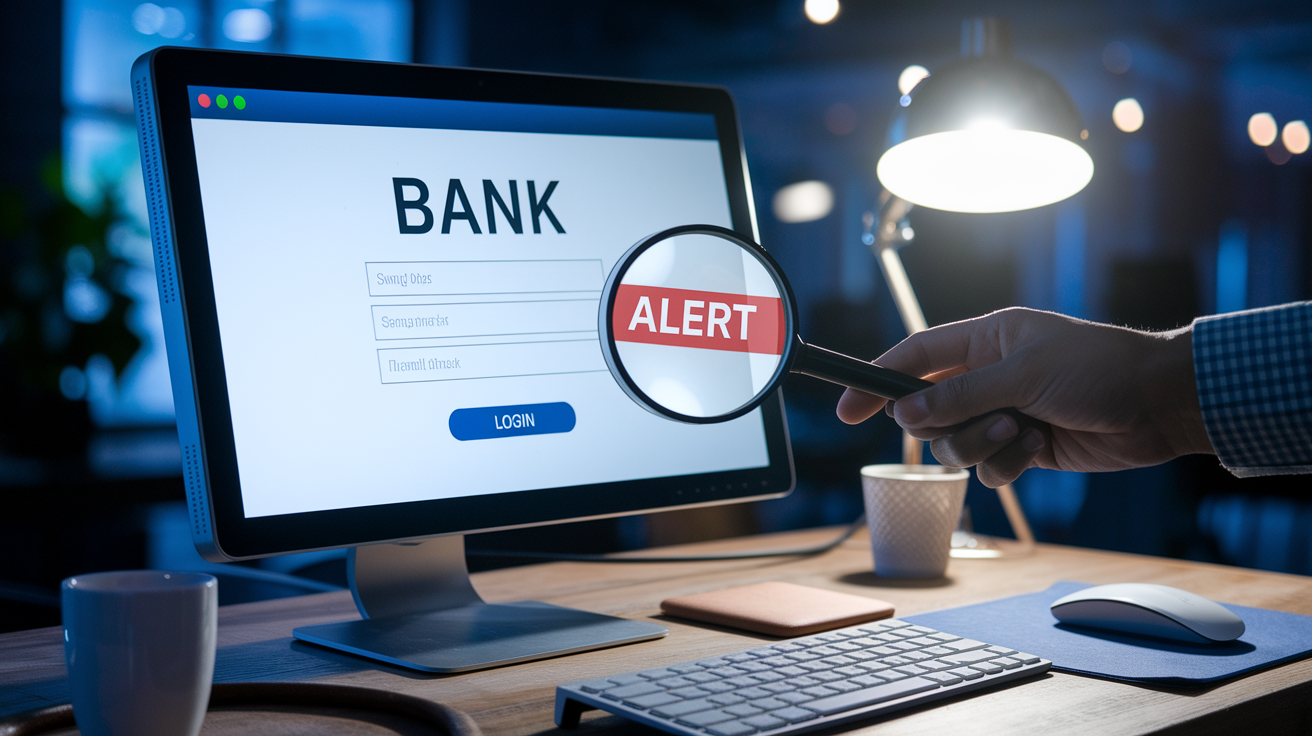
Phishing attacks mimic legitimate linking flows to steal your credentials. An email claims your bank needs you to “re-verify your linked accounts” and includes a link that opens a page that looks identical to your bank’s login screen. The URL, though, is slightly off (maybe “bankofamerica-secure.com” instead of “bankofamerica.com”), and any username and password you enter goes straight to the attacker. Within minutes, they can log in to your real account, link it to their own app, and transfer your balance before you notice.
Always navigate to your bank’s website or app by typing the address yourself or using a bookmark you created. Never click links in unsolicited emails, text messages, or pop-up ads that claim to be from your bank. If you’re unsure whether a message is real, call your bank using the phone number printed on the back of your debit card or listed on a recent statement (not the number in the suspicious message). Legitimate banks won’t ask you to provide your password, one-time codes, or full account numbers over email or in a text.
Seven phishing red flags to watch for:
- Unsolicited emails or texts asking you to “update,” “verify,” or “re-link” your accounts by clicking a link.
- Login pages with misspelled domain names, missing HTTPS padlock icons, or URLs that don’t match your bank’s official address.
- Urgent language claiming your account will be locked, funds frozen, or fees charged unless you act immediately.
- Requests to disable multifactor authentication or to share the one-time codes sent to your phone.
- Pop-up windows that appear while you’re browsing and ask for your bank username and password.
- Messages claiming to be from a government agency or law enforcement demanding immediate payment or account verification.
- Offers that guarantee high returns or bonuses in exchange for linking your bank account to an unfamiliar app or service.
How to Unlink or Revoke Access From Connected Bank Accounts
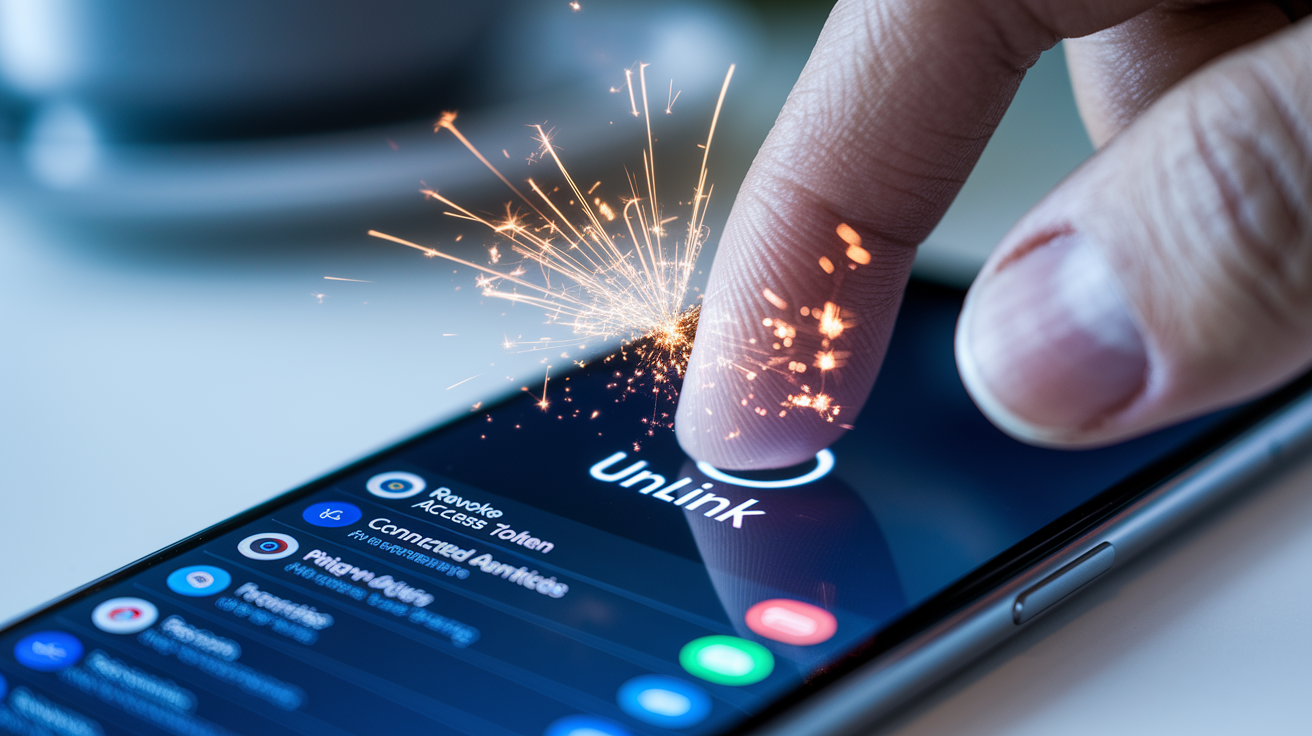
Unlink accounts you no longer use, especially if you’ve stopped using a budgeting app, closed a brokerage account, or switched payment providers. Leaving dormant connections active increases your attack surface. If the third-party app suffers a breach, your bank data can still be exposed even if you haven’t logged in for months. Revocation is usually a one-click process, but the location of the setting varies by platform.
In most banking apps and websites, look for “Linked Accounts,” “External Accounts,” or “Connected Apps” under the settings or security menu. You’ll see a list of all active connections, often with the date each was created and the type of access granted. Tap or click the account or app you want to remove, then select “Unlink,” “Remove,” or “Revoke Access.” Some platforms ask you to confirm by entering your password or approving a multifactor prompt to prevent accidental unlinking. Once removed, the third-party app will no longer receive transaction updates, and any scheduled transfers tied to that link will be canceled.
Payment apps like PayPal and Venmo store linked banks in a “Wallet” or “Payment Methods” section. Open the app, navigate to your wallet, select the bank account, and tap “Remove” or “Disconnect.” If you linked through an aggregator like Plaid, you may also need to revoke the token directly in the aggregator’s privacy settings. Some aggregators let you manage connections through a web portal by searching “Plaid my connections” and logging in with the email you used during linking. Desktop finance software like Quicken typically requires you to open “Tools,” select “Account List,” highlight the linked account, and choose “Edit” followed by “Delete Account” to sever the connection.
Five steps to fully unlink and revoke access:
- Log in to your bank’s website or app and navigate to “Linked Accounts,” “External Accounts,” or “Connected Apps” in the settings menu.
- Review the list of active connections and identify any apps or accounts you no longer use or recognize.
- Select the connection you want to remove and tap “Unlink,” “Remove,” or “Revoke Access.” Confirm with your password or a multifactor prompt if asked.
- If you linked through an aggregator, search for the aggregator’s name plus “manage connections” in a web browser, log in, and revoke the token for that specific app.
- Check your email and transaction alerts over the next few days to confirm no further data is being pulled and no unexpected transfers occur.
Monitoring and Alerts After Linking Bank Accounts

The first 30 to 90 days after linking are the most critical for catching problems. Set up automatic alerts for every account involved in the link so you receive a notification within minutes of any login attempt, new transaction, or balance change. Most banks and apps let you choose how alerts are delivered (push notifications, SMS, or email), and you can usually set thresholds so you’re only notified for transactions above a certain dollar amount or for activity outside your usual spending patterns.
Check your account statements within 24 to 72 hours after completing the link to confirm the verification deposits or test transfer appear as expected and that no unauthorized transactions were processed. Review your linked account’s transaction history weekly for the first month, then monthly after that. If you spot any unfamiliar activity (a withdrawal you didn’t authorize, a login from a location you don’t recognize, or a new linked account you didn’t add), contact your bank immediately and change your password. Quick reporting limits your liability under the Electronic Fund Transfer Act. Delays beyond 60 days can leave you responsible for the full loss.
Final Words
You now have a clear, security-first playbook: what linking does, the safe steps to follow, and the verification methods to prefer.
We covered same-bank vs cross-bank links, OAuth and tokenized options, micro-deposits, MFA and biometrics, plus device-specific tips for mobile and desktop. You also learned how to spot phishing, revoke access, and set alerts so small issues don’t become big ones.
If you keep to those steps and check your alerts, you’ll know how to link bank accounts securely and keep control of your money. Small chores now, like permissions, alerts, and occasional reviews, save headaches later. You’ve got this.
FAQ
Q: Is it safe to link two bank accounts together?
A: Linking two bank accounts together is generally safe when done through your bank’s official site or a trusted connector, using multi-factor authentication, HTTPS, and by reviewing permissions and transaction alerts afterward.
Q: What is the $3000 bank rule?
A: The $3000 bank rule usually refers to banks’ internal monitoring that can flag transfers or cash movements around $3,000. There is no universal federal $3,000 reporting rule. Official reporting starts at $10,000.
Q: How do you manage a bank account for someone with dementia?
A: Managing a bank account for someone with dementia means setting up a durable power of attorney or joint account, notifying the bank, limiting access, enabling alerts, and reviewing transactions frequently to prevent mistakes or fraud.
Q: What is the most common way bank accounts are hacked?
A: The most common way bank accounts are hacked is through phishing and credential theft. Attackers trick users into sharing passwords, use malware, or exploit reused credentials to gain access.