



Stop pretending spreadsheets are “good enough”—they’re quietly costing your business time and money.
Expense tracking software pulls receipts, card feeds, and approvals into one place so you can see spending in real time.
It cuts data entry, speeds reimbursements, and flags policy problems before they become costly surprises.
In this post we’ll show how these simple tools work, which features actually save time, and how to pick the right one for your small business.
Understanding Expense Tracking Software and Its Core Purpose

Expense tracking software is a digital system that pulls all your business spending into one place. It replaces paper receipts and spreadsheet logs, and it handles most of the grunt work that comes with managing company expenses. Instead of employees jamming receipts into envelopes and finance teams typing numbers by hand, the software does the recording, organizing, approving, and analyzing. It turns messy spending data into clean records that show you where money’s going, help you stick to budgets, and make tax season less of a nightmare.
The main point is to give business owners and finance teams real time visibility into spending while cutting down on admin work. Employees get reimbursed faster and can submit receipts by snapping a photo. Managers get an approval dashboard that beats email chains and sticky notes. Finance teams skip hours of manual data entry and dodge the errors that come from typing receipts. Executives get spending insights that make budgeting and decision making easier.
At a high level, here’s how it works:
Recording — Employees capture receipts by taking a photo or uploading a file, and the system stores the details.
Categorizing — The software sorts expenses into buckets like travel, meals, office supplies, client entertainment.
Approving — Managers see submissions in a dashboard or mobile app and approve or reject with one tap.
Analyzing — The system generates reports that show spending trends, budget gaps, and data ready for accounting or taxes.
Most modern platforms include receipt capture (photo upload or email), automatic categorization, real time reporting, approval workflows that route expenses to the right manager, spending visibility across teams or projects, and basic security. These features replace the manual work that slows down reimbursements and creates audit headaches.
Key Features Found in Modern Expense Tracking Software Systems

Modern platforms use OCR technology to pull the date, merchant name, and dollar amount from a receipt photo. When someone snaps a picture of a restaurant bill or hotel invoice, the software reads it and fills in the expense fields without typing. This cuts out transcription errors and saves time. Many systems catch duplicates too. If an employee accidentally submits the same receipt twice, the software flags it and stops double payment. Real time card feeds pull transaction data straight from Visa, Mastercard, and American Express, so every swipe shows up in minutes. When a receipt photo matches a card transaction, the software links them automatically.
You’ll also find ACH reimbursements (automated bank transfers that pay employees faster than paper checks), virtual cards (single use or employee specific card numbers that make tracking cleaner), AI assistants that answer questions like “How much did we spend on marketing last month?” in plain language, and policy tools that flag expenses over spending limits before approval. Most platforms connect with accounting systems like QuickBooks Online, QuickBooks Desktop, Xero, Sage Intacct, Sage 300 CRE, Sage 50, and NetSuite, so expense data flows into the general ledger without manual imports.
| Feature | What It Does |
|---|---|
| OCR receipt scanning | Reads receipt images and fills in date, merchant, and amount fields so you don’t have to type. |
| Real time card feeds | Pulls live transaction data from credit and debit cards and matches it to receipts for faster reconciliation. |
| Accounting integrations | Exports categorized expense data straight into QuickBooks, Xero, Sage, or NetSuite so finance avoids duplicate data entry. |
Benefits of Expense Tracking Software Compared to Manual Tracking

Manual tracking runs on spreadsheets, paper receipts, and email threads. An employee saves a crumpled receipt in a wallet, waits until month end, types the details into a spreadsheet, emails it to a manager, waits for approval, then forwards it to finance. Finance re-enters the data into accounting software, checks for duplicates by hand, and processes reimbursement. Often weeks after the original purchase. Receipts get lost, amounts get mistyped, duplicate submissions slip through, and finance spends hours on data entry instead of analysis.
Automated software cuts out most of those steps. Employees submit receipts the same day by snapping a photo. The software grabs the data, categorizes the expense, and routes it to the right manager. Approvals happen in minutes from a mobile app. Finance sees expenses in real time, and the system exports categorized data to accounting software automatically. Reimbursements process faster, often within days instead of weeks, and employees stay happier. The software flags duplicates, enforces spending policies before approval, and provides audit trails that show exactly who submitted what and when.
Key benefits:
Fewer errors and duplicates — OCR reduces typos, and duplicate detection stops double payments that cost money and create audit problems.
Faster reimbursements — Automated workflows cut approval time from weeks to hours, so employees get paid back sooner.
Real time spending visibility — Dashboards show current spending totals by category, department, or project, making it easier to catch budget overruns before month end.
Better tax readiness — Digital receipts are accepted by tax authorities when they include date, amount, and vendor, and the software stores them in one searchable place.
Reduced manual work — Finance teams spend less time entering data and more time analyzing trends, forecasting budgets, and supporting decisions.
How Expense Tracking Software Works From Capture to Reporting

The lifecycle starts when an employee captures a receipt. They take a photo with a mobile app, email a scan, or upload a file from a computer. The software uses OCR to read the receipt and populate the date, merchant name, and total. If the employee paid with a company credit card, the platform pulls the matching transaction from the real time card feed and links it. If fields are incomplete or unclear, the software asks the employee to confirm or correct before submission.
Once the receipt data’s captured, the software categorizes the expense. Machine learning looks at the merchant name and past spending to assign a category like meals, office supplies, travel, or client meetings. Some platforms let finance teams build custom categories such as “project materials” or “continuing education” to match the company’s budget structure. Employees can override the suggested category if the software guesses wrong. The system checks the expense against company policies too. If an employee submits a first class flight when the policy allows only economy, the software flags it and notifies the manager before approval.
Next, the expense moves through approval. The software routes it to the employee’s manager based on preset rules. Direct supervisor for amounts under a threshold, senior manager or finance for larger purchases. The manager gets a notification on their phone or desktop, reviews the receipt and category, and approves or rejects with one tap. If rejected, the manager adds a note, and the employee can resubmit with corrections. Approved expenses advance automatically to the next step. Reimbursement processing for out of pocket purchases, or simple reconciliation for corporate card transactions.
Finally, the software generates reports and exports data to accounting systems. Finance teams see real time dashboards showing total spending, category breakdowns, and budget variances. At month end, the platform exports categorized expense data to QuickBooks, Xero, Sage, or NetSuite in the right format, so you don’t re-enter transactions into the general ledger. Tax season gets simpler because every receipt’s stored digitally with metadata (date, amount, vendor, category) and can be filtered, searched, or printed for audits.
The four workflow stages:
Receipt capture — Photo upload, email submission, or manual entry with OCR extraction of key fields.
Categorization and policy check — Automatic assignment of expense category and real time validation against spending limits or approval rules.
Approval routing — System sends submission to the right manager based on amount and department, with mobile notifications for faster response.
Export and reconciliation — Approved expenses sync to accounting software and reimbursements process via ACH or payroll integration.
Choosing the Right Expense Tracking Software for Small Businesses

Ease of use matters most because software that confuses employees won’t get used. Look for a platform with a simple mobile app that lets someone submit a receipt in under 30 seconds. Snap a photo, confirm the category, hit submit. The manager approval screen should be just as easy. If employees need a training manual to file an expense report, they’ll avoid the system and go back to spreadsheets. Test the vendor’s free trial by having a non-finance employee try submitting a receipt. If they struggle, move on.
Automation strength determines how much time the software actually saves. Strong automation includes OCR receipt scanning, real time card feeds, duplicate detection, policy enforcement, and automatic categorization. Weak automation makes employees type amounts by hand, managers check receipts manually, and finance reconcile card statements one transaction at a time. Ask vendors specific questions. Does the system auto-match receipts to card transactions? Does it flag duplicate submissions? Can it enforce spending limits before approval? The more it automates, the fewer hours your team spends on admin.
Integration capability and data protection are deal breakers. The software needs to connect to your accounting system (QuickBooks, Xero, Sage Intacct, NetSuite, or another platform) and export data in the right format without manual mapping. If your team uses payroll software, CRM tools, or ERP systems, check whether the expense platform integrates with those too. On security, confirm that the vendor encrypts data in transit and at rest, restricts access by role (employees see only their own expenses, managers see their team’s, finance sees everything), and provides audit logs that track who accessed or changed expense records.
Evaluate vendors on these seven points:
Intuitive UX — Simple mobile and desktop interfaces that need minimal training and feel natural to non-finance users.
OCR and automation — Automatic receipt scanning, categorization, duplicate detection, and policy checks that reduce manual data entry.
Accounting integrations — Direct connections to QuickBooks, Xero, Sage, NetSuite, or custom ERP systems with automatic export at month end.
Data protection — Encryption, role based access controls, audit trails, and compliance with privacy regulations relevant to your industry.
Scalability — Pricing and features that grow with your business, from five employees to fifty or five hundred, without forcing a platform switch.
Pricing transparency — Clear per user or tiered pricing with no hidden fees for essential features like receipt scanning or accounting sync.
Vendor support and uptime — Reliable customer support, regular software updates, and minimal downtime during business hours.
Implementation Basics: Setting Up and Onboarding Your Team

Rolling out expense tracking software starts with building your category schema. Sit down with finance and list every type of expense your business sees. Office supplies, travel (flights, hotels, meals), client entertainment, software subscriptions, contractor fees, marketing, and so on. Match these categories to your chart of accounts so expense data exports cleanly into your accounting system. Most platforms let you create custom categories and subcategories. Keep the list simple enough that employees can choose the right category without confusion, but detailed enough that finance can track spending accurately.
Next, set up approval roles and workflows. Decide who approves expenses for each department or spending tier. A common structure is direct manager approval for amounts under a threshold (say, $500), senior manager or finance approval for mid range expenses ($500 to $2,500), and executive sign off for large purchases over $2,500. The software should route submissions automatically based on these rules. If your company has multiple locations or cost centers, configure approval paths by geography or project. Test the workflows by submitting sample expenses and confirming they reach the right approver.
Import historical data if you want continuity in reporting. Many platforms let you upload past expense records from spreadsheets so you can compare current spending to previous months or quarters. This step’s optional but helpful for budgeting and trend analysis. Connect your corporate credit card feeds by linking Visa, Mastercard, or American Express accounts to the platform. Real time transaction feeds cut out the need to manually match receipts to card statements. If employees use personal cards for business purchases, set up ACH reimbursement by linking your business bank account.
Roll out the mobile app and train your team. Send installation instructions and a short guide showing how to submit a receipt in three steps: open the app, take a photo, confirm the category. Schedule a 15 minute walkthrough for managers to show them how to approve expenses from their phone. For finance users, demonstrate the reporting dashboard, export process, and policy enforcement settings. Keep the training practical and hands on. Most people learn faster by doing than by watching slides.
Implementation steps:
- Build your expense category schema and map it to your accounting chart of accounts for clean data export.
- Configure approval workflows by setting spending thresholds and routing rules that match your organizational structure.
- Import historical expense data from spreadsheets if you need continuity in budget comparisons and trend reports.
- Connect corporate card feeds and set up ACH reimbursement accounts to automate transaction matching and employee payback.
- Roll out the mobile app with clear installation and usage instructions, and schedule short hands on training sessions for employees, managers, and finance.
- Activate duplicate detection and policy checks to enforce spending rules from day one and reduce the risk of errors or overspending.
Using Mobile Apps for Expense Tracking and On the Go Submissions

Mobile apps make expense tracking faster because employees can submit receipts the moment they pay. Instead of stuffing a paper receipt into a wallet and hoping to remember it weeks later, an employee pulls out their phone, opens the app, and snaps a photo while still standing at the register. The OCR engine extracts the date, merchant, and amount, the employee confirms the category, and the receipt lands in the approval queue within seconds. This cuts down on lost receipts and gets rid of the monthly scramble to reconstruct spending from faded paper and fuzzy memories.
Most mobile apps include offline mode, so employees can submit receipts even without internet access. Useful during flights, in rural areas, or in buildings with weak cell signals. The app stores the submission locally and syncs it to the server as soon as connectivity returns. Push notifications keep the process moving. Employees get a confirmation when their expense is approved, and managers get alerts when new submissions arrive. Some platforms send fraud alerts if unusual spending patterns show up, like a large purchase in an unexpected location or duplicate transactions within minutes.
Mobile apps also support common travel scenarios:
Photo capture — Snap a receipt picture with the phone camera. OCR reads it and populates expense fields automatically.
Offline submission — Record expenses without internet, then sync when connected. No data gets lost during travel gaps.
Push notifications — Instant alerts for approvals, rejections, or policy violations keep employees and managers in the loop.
Card transaction matching — View real time card charges in the app and attach receipts with one tap for faster reconciliation.
Compliance, Security, and Audit Readiness in Expense Tracking Software

Tax authorities accept digital receipts as long as they’re legible and include the transaction date, total amount, and vendor name. Expense tracking software stores receipt images alongside extracted data, so finance teams can produce complete records during an audit without hunting through file cabinets. Retention rules vary by jurisdiction. Some require businesses to keep receipts for three years, others for seven. But most platforms archive receipts indefinitely and let you export them in bulk if you switch vendors or need to hand records to an auditor.
Audit trails are built into modern expense platforms. Every action (submission, approval, rejection, edit, or export) gets logged with a timestamp and user ID. If a question comes up about why an expense was approved or who changed a category, the audit log provides the answer. This traceability reduces fraud and makes it easier to spot patterns like duplicate submissions or policy violations. Some platforms flag suspicious activity automatically, such as an employee submitting the same receipt twice or a meal expense that exceeds daily per diem limits.
Security features protect financial data from unauthorized access. Look for platforms that encrypt data in transit (when it moves between the app and the server) and at rest (when it’s stored in the database). Role based permissions ensure employees see only their own expenses, managers see their team’s submissions, and finance sees everything. Multi-factor authentication adds protection by requiring a second verification step (like a code sent to a phone) when logging in from a new device.
Three essential security and compliance features:
Encryption and access controls — Data encrypted in transit and at rest, with role based permissions that limit who can view, approve, or edit expense records.
Complete audit trails — Timestamped logs of every submission, approval, rejection, or change, showing who did what and when for forensic review.
Digital receipt retention — Automatic archival of receipt images and metadata for the legally required period, with bulk export options for audits or vendor switches.
Travel, Mileage, and Corporate Card Management Inside Expense Tracking Platforms

Travel expense policies often spell out what the company will reimburse. Economy flights instead of first class, mid tier hotels instead of luxury suites, daily meal limits for client dinners. Expense tracking software enforces these rules at submission time. If an employee books a business class ticket when the policy allows only coach, the system flags the violation before the manager even sees it. Pre-approval workflows let employees request permission for exceptions, like a long international flight where business class makes sense, so the manager can approve or deny the upgrade in advance instead of debating it after the fact.
GPS based mileage tracking improves accuracy for employees who drive their personal vehicles for business. Instead of guessing distances or looking up routes on a map, the app uses the phone’s GPS to record the exact mileage from point A to point B. The system multiplies the distance by the current IRS mileage rate and calculates the reimbursement amount automatically. Some platforms let employees log trips manually if they forget to start the GPS tracker, but automated tracking reduces errors and speeds up approvals.
Corporate card feeds simplify reconciliation. When an employee uses a company credit card, the transaction appears in the expense platform within minutes. The employee attaches a receipt photo to the matching transaction, the manager approves it, and the card charge gets reconciled without any manual matching. Virtual cards take this further. Finance teams can issue single use card numbers for specific purchases or assign employee specific virtual cards that tie directly to the user’s expense account. ACH reimbursements handle out of pocket expenses by transferring money from the business bank account to the employee’s personal account, cutting out paper checks.
| Feature | Travel/Card Function |
|---|---|
| Policy enforcement | Flags expenses that violate travel rules (e.g., first class flight, over budget hotel) before manager approval. |
| GPS mileage tracking | Automatically records driving distance using phone GPS, calculates reimbursement at IRS rates, and attaches route maps to expense submissions. |
| Real time card feeds and virtual cards | Pulls corporate card transactions instantly, auto-matches them to receipts, and allows finance to issue single use or employee specific virtual cards for better tracking. |
Reporting, Analytics, and Executive Dashboards for Spend Insights
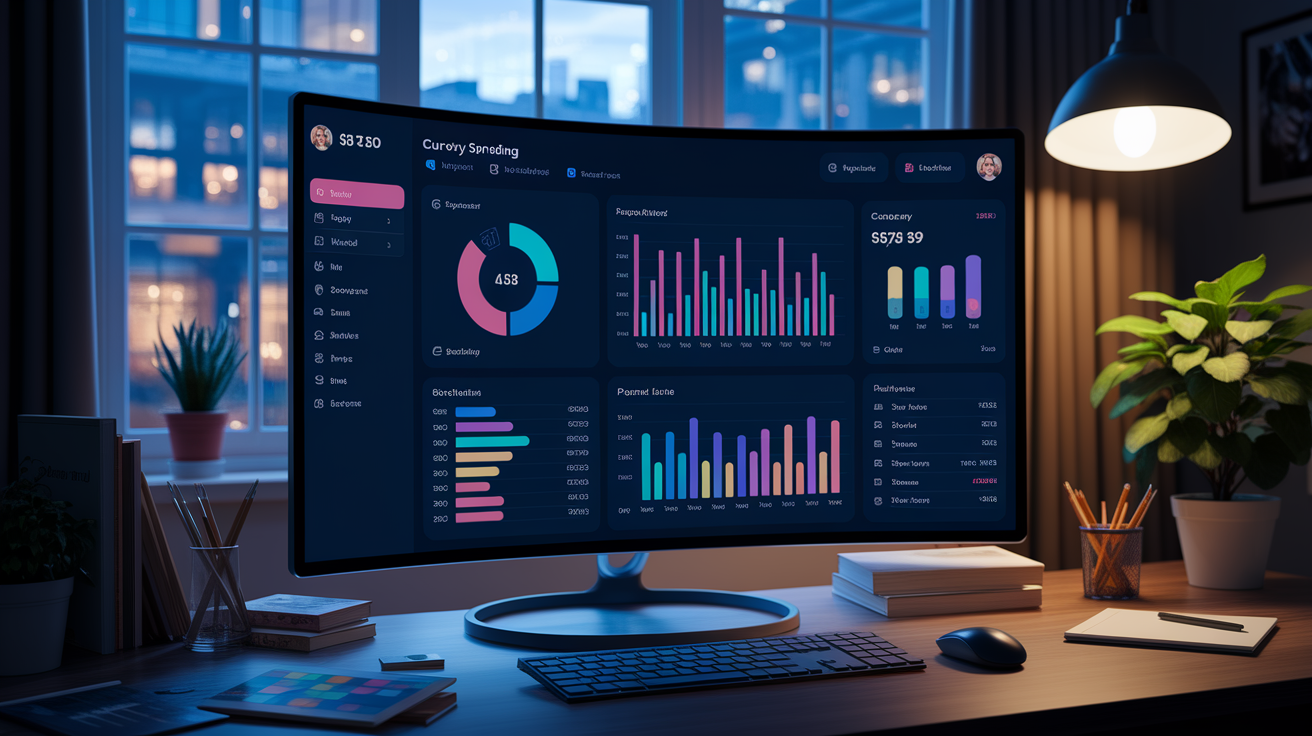
Dashboards show real time spending totals by category, department, project, or employee. A small business owner can log in and see that the company’s spent 70% of the monthly marketing budget by mid month, then decide whether to pause campaigns or reallocate funds from another category. Finance teams use dashboards to monitor cash flow, identify cost overruns, and prepare month end reports without waiting for credit card statements or manual spreadsheet updates. Managers see their team’s spending at a glance and spot patterns, like one employee consistently submitting meal expenses above the daily limit, that require a conversation.
Predictive analytics help with budget forecasting. By analyzing past spending trends, some platforms estimate future expenses and highlight variances. For example, if office supply costs have increased 15% over the past three months, the system projects that trend forward and alerts finance to adjust the annual budget. AI assistants answer natural language questions like “How much did we spend on travel last quarter?” or “Which department is over budget this month?” and generate custom reports in seconds, without requiring finance teams to build pivot tables or export data to Excel.
Key performance indicators tracked by expense platforms:
Spending by category — Total dollars and percentage of budget consumed by travel, meals, supplies, software, contractor fees, and other expense types.
Budget variance — Difference between planned and actual spending for each category or department, with alerts when thresholds are exceeded.
Approval cycle time — Average days from submission to approval, showing bottlenecks in workflows or slow responding managers.
Reimbursement speed — Time from approval to payment, which affects employee satisfaction and highlights inefficiencies in payroll or ACH processes.
Policy compliance rate — Percentage of expenses that meet company rules on first submission, indicating how well employees understand policies and how effectively the system enforces them.
When to Move From Manual Tools to Automated Expense Tracking Software
Manual tracking works in the early days of a business when there are only a few employees and a handful of monthly expenses. An Excel spreadsheet with columns for Date, Category, Amount, and Notes is easy to set up and needs no subscription fees. You can use SUM formulas to total spending by category and build simple pie charts to visualize where money goes. But as transaction volume grows, manual tracking becomes a time sink. Finance teams spend hours entering data, checking for duplicates, and chasing employees for missing receipts. Errors multiply (typos, lost receipts, duplicate payments), and month end close drags on for days.
Signs that it’s time to upgrade include employees submitting more than 20 expense reports per month, reimbursement delays stretching past two weeks, frequent duplicate payments or missing receipts, multiple departments or projects that require separate budget tracking, or a finance team that spends more than 10 hours a week on manual expense entry and reconciliation. If you’re preparing for an audit and realize your receipts are scattered across email, file folders, and desk drawers, that’s another strong signal. Automated software solves these problems by centralizing receipts, cutting out manual entry, enforcing policies, and speeding up approvals.
Recurring expenses like software subscriptions, utilities, and contractor payments are easy to automate. Instead of manually logging the same transaction every month, the software can auto-populate recurring expenses and route them for approval on a set schedule. Bulk import features let you upload historical expenses from spreadsheets during the transition, so you maintain continuity in budget reporting without re-entering months of old data.
Four indicators that signal the need to upgrade:
Volume exceeds 20 expense reports per month — Manual entry and approval workflows slow down, and the risk of lost receipts or duplicate submissions increases.
Reimbursement delays stretch beyond two weeks — Employees grow frustrated waiting for payback, and finance teams struggle to keep up with the approval backlog.
Multiple departments or cost centers — Tracking spending by team, project, or location becomes cumbersome in spreadsheets and needs automated categorization and reporting.
Finance spends more than 10 hours per week on manual expense work — Time spent typing receipts, matching card statements, and chasing approvals exceeds the cost of automation software.
Final Words
You can now see how expense tracking software centralizes spending, simplifies electronic expense filing, and automates categorization, approvals, and basic reporting.
We covered the core definition, the four-step flow (recording, categorizing, approving, analyzing), key features, selection and rollout tips, mobile use, compliance, travel/card handling, and dashboards for insights.
If you still wonder what is expense tracking software, it’s a tool that turns messy receipts into organized, auditable spend records so reimbursements, forecasting, and audits are easier. Start small and you’ll gain clearer control over company spending.
FAQ
Q: What is the best software for keeping track of expenses?
A: The best software for keeping track of expenses depends on your company size and needs. For simple mobile capture pick Expensify; for full accounting pick QuickBooks; choose automation, integrations, and ease of use.
Q: What is the $75 rule?
A: The $75 rule means receipts are required for expenses over $75, while smaller purchases may rely on card records or simplified proofs. Always confirm your employer’s policy and any tax or local reporting rules.
Q: Is Expensify better than QuickBooks, and is Expensify really free?
A: Expensify isn’t universally better than QuickBooks; Expensify focuses on expense capture and approvals while QuickBooks focuses on accounting. Expensify has a limited free plan; paid tiers add automation, integrations, and card features needed at scale.