



What if your budget tracked itself while you lived your life?
That’s basically what Mint does: it links your checking, credit cards, and other accounts, imports past transactions, and sorts each purchase into categories so you can see where your money goes.
Mint suggests monthly limits based on your real spending and updates the dashboard every few hours, warning you when you near or exceed a category.
The catch: it saves time but needs a little upkeep—reassign miscategorized transactions and set vendor rules so future charges hit the right buckets.
Core Process: Understanding How Mint Budgeting Works Step-by-Step

Mint’s budgeting engine builds a complete picture of your money by automatically pulling transaction data from all your linked accounts, then sorting those transactions into categories and comparing them against monthly spending limits you set. When you first sign up, Mint imports historical transactions, sometimes months’ worth, so you don’t start with a blank slate. That historical data becomes the foundation for Mint’s suggested budget amounts, which are calculated by averaging what you actually spent in each category over recent weeks or months.
Once your accounts are connected, Mint runs a continuous cycle. It checks for new transactions every few hours, assigns each one to a category based on the merchant name, and updates your budget dashboard to show how much you have left to spend in each category this month. The dashboard displays red warnings when you exceed a budget and green progress bars when you’re on track. Mint also distinguishes between spending and transfers. For example, a credit card payment is marked as a “Transfer” rather than an expense, so you don’t accidentally count the same dollar twice (once when you swipe the card and again when you pay the bill).
The system is designed to require minimal input after the initial setup, but it isn’t entirely hands off. Mint sometimes miscategorizes transactions. A bar might be labeled “Restaurant,” or a gas station might appear as “Auto & Transport” instead of “Gas & Fuel.” You’ll need to review and correct those assignments to keep your budget accurate. Over time, you can teach Mint by creating vendor rules that automatically assign future purchases from a specific merchant to the correct category, reducing the amount of manual cleanup required each week.
The entire workflow distills into four repeating steps:
- Link your spending accounts. Connect checking, credit cards, and payment apps like Venmo so Mint can pull transaction data automatically.
- Pick a set of categories. Choose 10–20 categories (preset or custom) to model your lifestyle without overwhelming yourself with detail.
- Track your spending. Perform a weekly check in to verify transaction category, date, and description. Recategorize as needed.
- Set budgets. Estimate monthly income and allocate budgets from most essential to least, using Mint’s historical average suggestions as a starting point.
Linking Accounts for Mint Budgeting Accuracy

Mint supports connections to checking accounts, savings accounts, credit cards, auto loans, student loans, mortgages, retirement accounts (401(k), IRA), brokerage accounts, and certificates of deposit. The more accounts you link during setup, the more complete your spending picture becomes, and the more reliable Mint’s budget suggestions will be. If you only connect one checking account but spend regularly on two credit cards, Mint will underestimate your total spending and your budget will feel artificially low.
Account linking happens through Mint’s setup wizard, which asks you to log in to each financial institution using your online banking credentials. Mint stores those credentials in a separate encrypted database and uses them to fetch new transactions automatically. Once linked, Mint imports your transaction history, often going back 90 days or more, so your budget dashboard populates immediately instead of waiting weeks for enough data to accumulate. This auto import runs in the background every few hours, keeping your balances and transaction lists current without any action on your part.
Account sync can break when your bank changes its security questions, when you update your password, or when a bank’s connection protocol changes. Common sync issues include:
- Stale credentials after password reset. If you change your online banking password, Mint will lose access and prompt you to reconnect the account by entering the new credentials.
- Security question updates. Some banks periodically rotate security questions. Mint will ask you to re-authenticate when this happens.
- Expired refresh tokens. Banks issue tokens that allow Mint to fetch data without re-entering your password each time. These tokens expire after a set period and require manual reconnection.
- Two factor authentication conflicts. If your bank enables mandatory two factor codes after initial linking, Mint may require you to enter a one time code during each sync cycle or to update your authentication method.
- Institution outages or maintenance. Banks occasionally take their data sharing APIs offline for upgrades, causing temporary sync failures that resolve automatically once the bank completes the work.
How Mint Categorizes Transactions for Budgeting
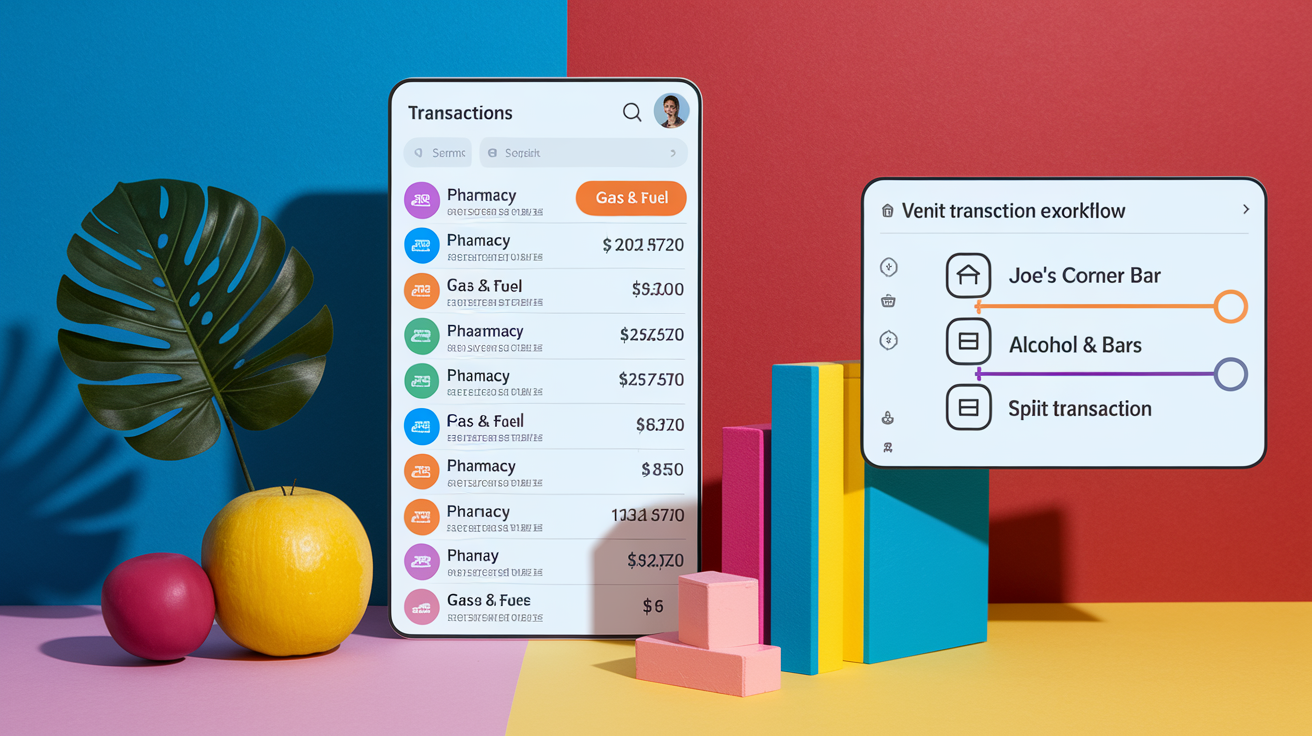
Mint assigns each transaction to a category by matching the merchant name against an internal database. A purchase at Whole Foods is automatically labeled “Groceries,” a charge from Starbucks becomes “Coffee Shops,” and a payment to your utility company lands in “Utilities.” This merchant-based logic works well for national chains with consistent naming but struggles with small local businesses or vague transaction descriptions, which is why some purchases end up in an “Uncategorized” bucket that you have to sort manually.
When Mint gets a category wrong, say, labeling a drugstore snack purchase as “Pharmacy” instead of “Food & Dining,” you can tap the transaction in the mobile app or click it on the website and reassign it to the correct category. That single correction doesn’t teach Mint to fix future transactions from the same merchant automatically. For that, you need to create a vendor rule. Vendor rules are permanent category overrides that you set up on the Mint website (not the mobile app). Once you create a rule telling Mint that all transactions from “Joe’s Corner Bar” should go to “Alcohol & Bars” instead of “Restaurants,” every future transaction from that merchant will land in the right category without your intervention.
Mint also supports tags, which let you group transactions across multiple categories for reporting purposes. For example, you could tag all wedding related expenses with “Wedding 2025,” then filter your transaction list to see total spending on the event even though those purchases span Clothing, Food & Dining, Travel, and Gifts. Tags don’t affect budget calculations. They simply add a layer of flexible organization on top of Mint’s fixed category structure.
Splitting Transactions
A single purchase sometimes includes items that belong in different budget categories. If you buy groceries and a birthday card at Target, Mint will assign the entire charge to one category, usually “Shopping” or “Groceries,” but you may want to count the card separately under “Gifts.” Mint’s split transaction feature lets you divide the total across multiple categories. For example, a $30 iTunes charge might include a $15 music album and a $15 movie rental, so you split it into $15 assigned to “Music” and $15 to “Movies & DVDs.” Each split portion then counts against the budget for its assigned category, giving you a more accurate picture of where your money actually went.
Setting Up Mint Budget Categories and Subcategories
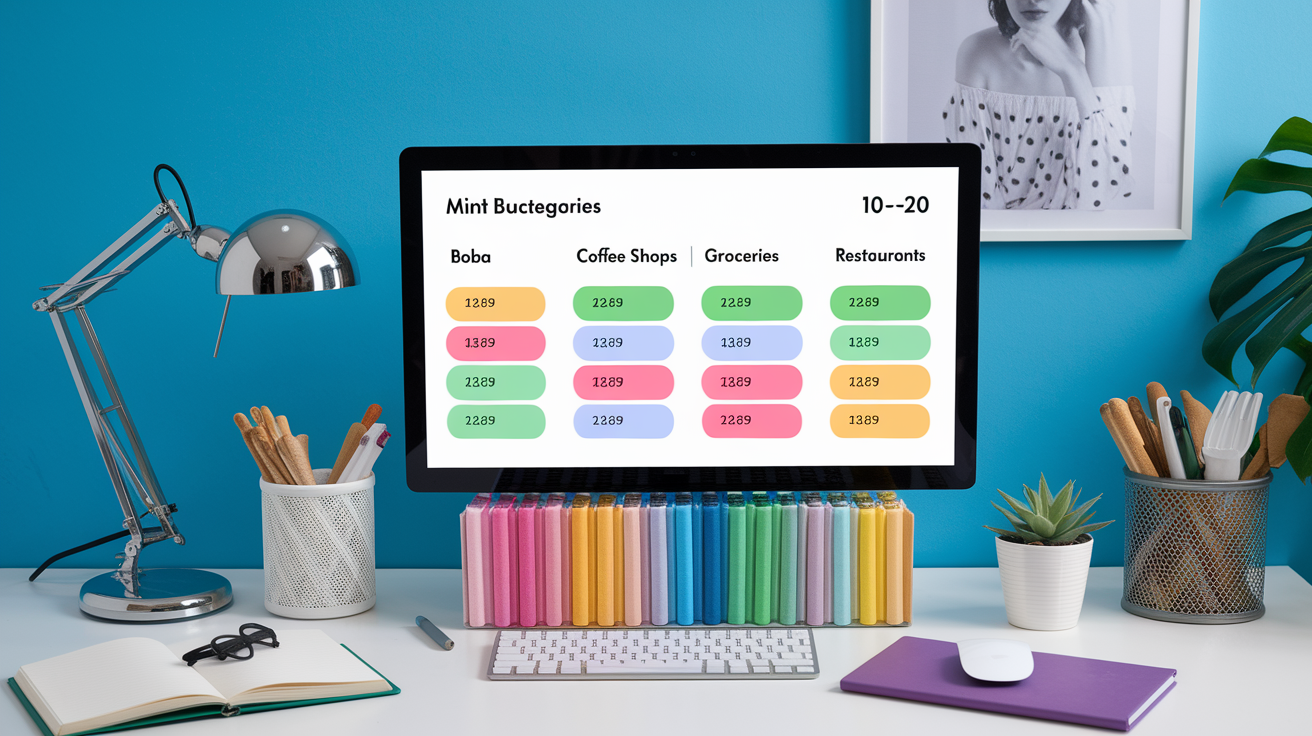
Mint ships with dozens of preset categories organized into parent groups like Food & Dining, Shopping, Transportation, Bills & Utilities, and Entertainment. You can use those defaults as is, customize them by renaming or merging, or create entirely new categories to match your spending habits. The recommended approach is to keep your total category count between 10 and 20. Fewer than 10 leaves too much spending lumped into broad buckets, while more than 20 can feel overwhelming and make weekly reviews tedious.
Subcategories add granularity where it matters without cluttering your main budget view. Food & Dining is a common candidate for subdivision because dining habits vary widely. You might split Food & Dining into four subcategories: Boba, Coffee Shops, Groceries, and Restaurants. Under that structure, you could set a $20 monthly budget for Boba, $60 for Coffee Shops, $400 for Groceries, and $200 for Restaurants, giving you tight control over discretionary coffee runs while still tracking essential grocery spending. Each subcategory appears as a separate line in your budget dashboard, so you can see at a glance whether you’ve overspent on takeout even if your total Food & Dining number is still under budget.
Categories aren’t set in stone. As you review your spending over the first few weeks, you’ll notice patterns. Maybe “Personal Care” is almost always zero, or “Entertainment” could be split into “Streaming Services” and “Events.” Adjust your category list to reflect those patterns. Practical subcategory examples include:
- Transportation: Gas & Fuel, Public Transit, Ride Share, Parking
- Shopping: Clothing, Electronics, Home Improvement, Hobbies
- Health & Fitness: Gym Membership, Supplements, Copays, Dental
- Subscriptions: Streaming, Software, News, Cloud Storage
Creating Budgets in Mint and Tracking Actual Spending
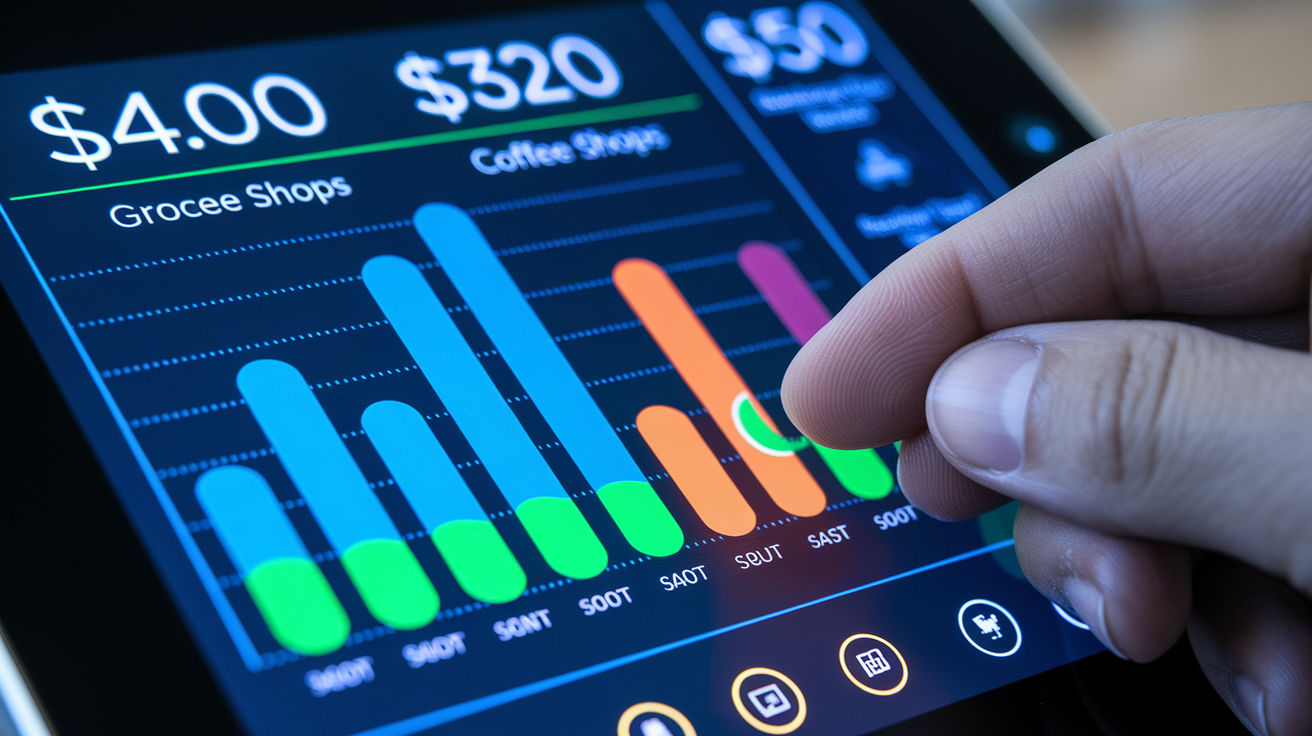
Mint calculates suggested budget amounts by averaging your spending in each category over the past few months. If you spent an average of $380 per month on groceries during the last three months, Mint will suggest a $380 Groceries budget. You can accept that suggestion, raise it if you expect costs to increase, or lower it if you want to cut back. Budget periods default to monthly, but Mint also supports weekly, every two weeks, and custom intervals if your income or spending follows a non-monthly cycle.
The budget dashboard shows each category as a horizontal bar. The bar fills from left to right as you spend, turning yellow when you hit 75 percent of the limit and red when you exceed it. Mint displays the dollar amount you have left to spend in each category, updating in near real time as new transactions sync. If your Groceries budget is $400 and you’ve spent $320 so far this month, the dashboard reads “Groceries: $80 left.” That remaining spend figure is Mint’s most useful real time signal. It tells you whether you can afford another grocery run this week or need to stretch what’s in the pantry until the budget resets on the first of the month.
Some budgets benefit from rollover, which carries leftover funds into the next month. Rollover works well for variable expenses like gas. If you drive less in March and only spend $40 of your $60 gas budget, rollover adds the unused $20 to April’s budget, giving you $80 to work with. Rollover is less useful for fixed costs like rent or predictable bills. You configure rollover on a per category basis when editing the budget in the Budgets tab.
| Category | Budget | Actual Spend |
|---|---|---|
| Groceries | $400 | $320 |
| Coffee Shops | $60 | $72 |
| Gas & Fuel | $80 | $55 |
Weekly and Monthly Spending Review Routines in Mint
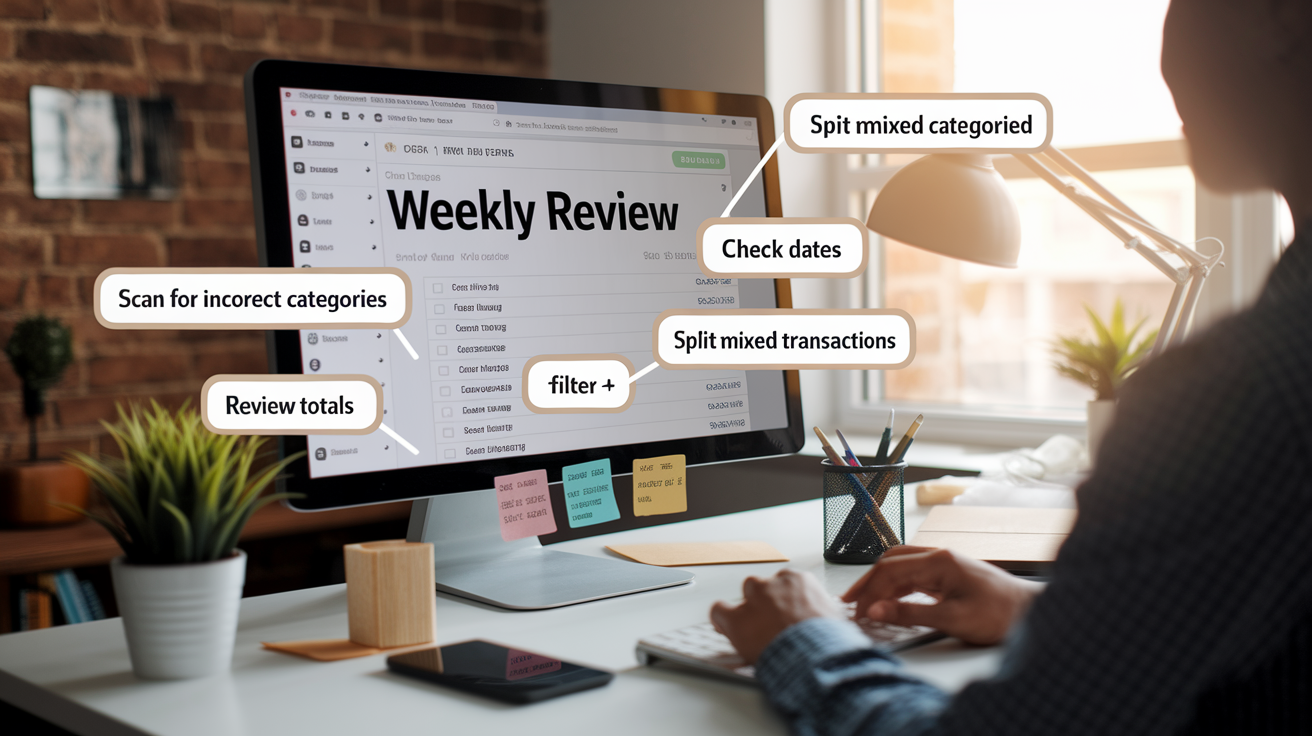
A weekly check in keeps your budget data accurate and prevents small errors from compounding into large misunderstandings by the end of the month. Mint’s automatic categorization is good but not perfect, and transaction dates sometimes shift by a day or two due to settlement delays. A purchase you made on March 31 might post to your account on April 1, throwing it into the wrong month’s totals. Weekly reviews catch those issues while they’re still fresh in your memory.
Monthly reviews zoom out to track broader patterns. During a monthly session, you compare this month’s spending to last month and to the same month last year, looking for seasonal trends or unexpected spikes. You also update budget targets based on what you learned. If you consistently overspend in Dining Out by $50, you either need to raise that budget or commit to cutting back. Monthly reviews are also the time to recategorize any transactions you skipped during weekly sessions and to check that your account balances match your bank statements.
The ideal weekly review follows this process:
- Filter for uncategorized transactions. Open the Transactions tab, filter by “Uncategorized,” and assign each one to the correct category.
- Scan recent transactions for incorrect categories. Look through the last seven days of activity and fix any obvious mistakes (bars labeled as restaurants, gas stations as auto service).
- Check transaction dates. If a purchase near the end of the month appears in the wrong month due to settlement lag, manually edit the date to reflect when you actually made the purchase.
- Review spending totals. Open the Budgets tab and note which categories are over, under, or close to the limit. Decide whether any category needs immediate attention.
- Split mixed transactions. If you made any large purchases that span multiple categories (e.g., a $100 Costco run including groceries, household items, and a prescription), split them now before you forget what the receipt contained.
Alerts, Notifications, and Bill Tracking in Mint Budgeting

Mint’s alert system sends email and SMS notifications when your account balance drops below a threshold you set, when you exceed a category budget, when a bill is due within the next few days, or when Mint detects suspicious account activity. You configure these alerts under My Accounts > Email & Alerts, choosing which events trigger a message and whether you want email, text, or both. Weekly and monthly summary emails provide a digest of your spending, upcoming bills, and net worth changes, which is useful if you don’t open the app regularly.
Bill tracking works by manually adding recurring payments (rent, utilities, subscriptions, loan payments) along with their due dates and amounts. Once a bill is entered, Mint displays it on your calendar and sends a reminder a few days before the due date. You can mark bills as paid within the app, which updates your transaction list and removes the reminder. Mint also watches your account balances and warns you if funds are low on a day when a bill is scheduled to auto pay, helping you avoid overdraft fees or late charges.
The most helpful notifications for budgeting discipline are:
- Over budget alerts. Sent the moment you cross 100 percent of a category budget, giving you immediate feedback to stop spending in that area.
- Low balance warnings. Triggered when your checking account dips below a set threshold, so you can transfer funds or postpone discretionary purchases.
- Bill due reminders. Sent 3–5 days before a payment is due, with a second reminder on the due date if you haven’t marked it paid.
- Weekly summary email. A Sunday morning recap showing total spending for the week, top categories, and upcoming bills, which keeps budgets top of mind without requiring you to log in daily.
Tracking Goals, Savings Progress, and Debt Within Mint
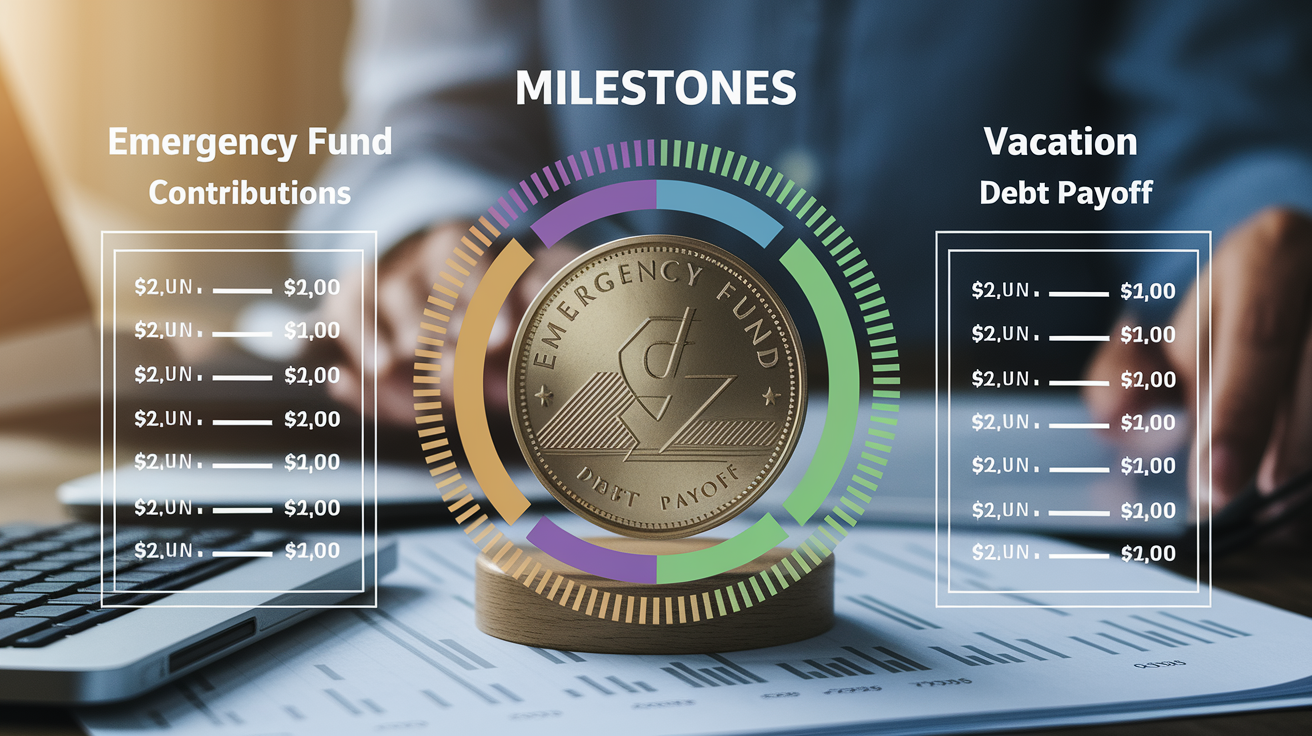
Mint’s Goals feature calculates how much you need to save or pay each month to reach a target by a specific date. You create a goal by choosing a category (vacation, car down payment, emergency fund, debt payoff), entering the target amount and deadline, and Mint divides the total by the number of months remaining to show your required monthly contribution. For example, a $6,000 emergency fund goal with a 12 month deadline requires $500 per month. Mint tracks your actual savings or debt reduction progress and updates a visual progress bar each time you add money to the linked account or make a payment.
Goals integrate with Mint’s recommendation engine. If you set a debt payoff goal, Mint may suggest balance transfer credit cards with lower interest rates or personal loans that consolidate multiple payments. If you create a savings goal, Mint might recommend high yield savings accounts or checking accounts with sign up bonuses. These suggestions appear in the Goals tab and are tailored to your spending habits, account balances, and credit profile, though you can ignore them if you prefer to stick with your current accounts.
Monthly goal updates show whether you’re on pace, ahead, or behind. If you committed to saving $500 per month but only deposited $300 in April, Mint recalculates your required monthly amount for the remaining months to keep the goal achievable. Common goal types include:
- Emergency fund. Three to six months of essential expenses saved in a liquid account for unexpected job loss, medical bills, or urgent repairs.
- Vacation or large purchase. A sinking fund for a planned expense like a trip, wedding, or appliance replacement.
- Debt payoff. Tracking payments on credit cards, student loans, or car loans with a target payoff date, often paired with extra principal payments to reduce interest.
Visual Trends, Charts, and Reports for Mint Budgeting Insights
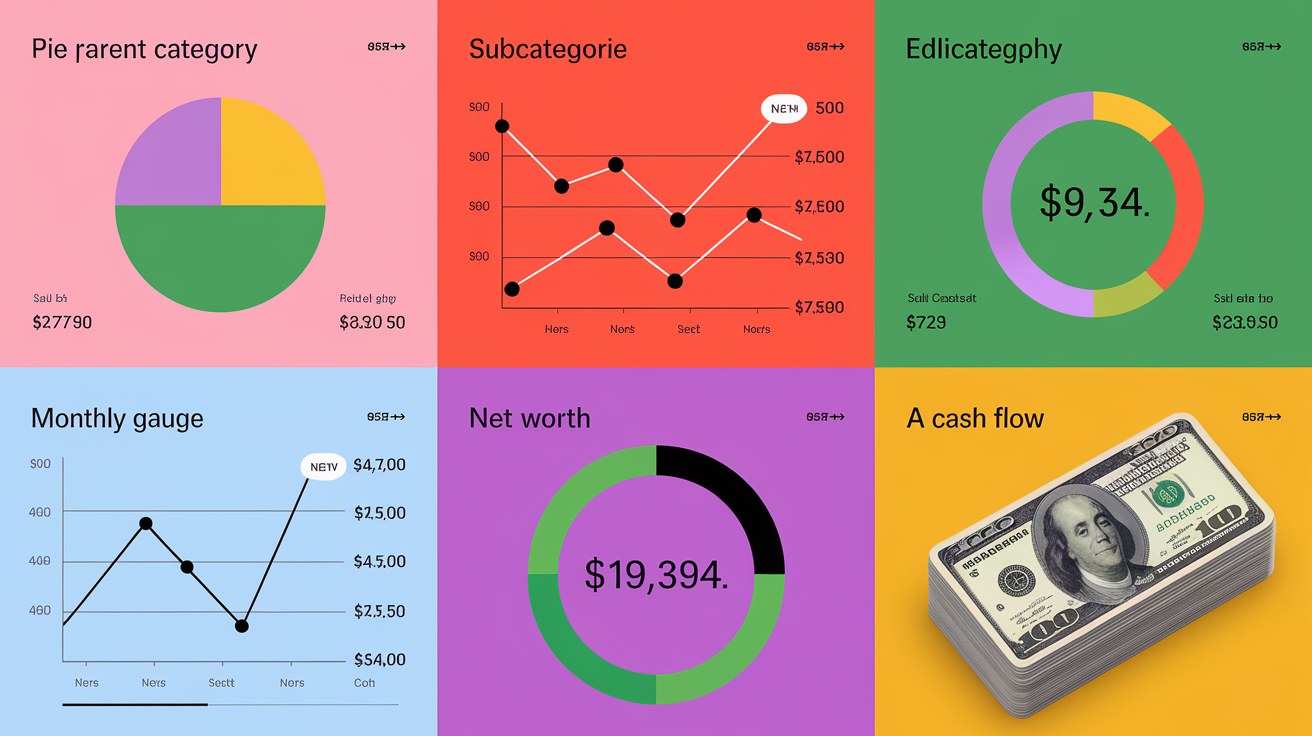
The Trends tab organizes your transaction history into charts that show spending over time and across categories. You can view data for “this month,” “last month,” “this year,” or “all time,” with each view updating automatically as new transactions sync. Pie charts break down total spending by parent category, and clicking a slice drills into subcategories, so clicking “Food & Dining” reveals how much you spent on Groceries vs Restaurants vs Coffee Shops. Line graphs plot spending trends month over month, making it easy to spot seasonal patterns (higher utility bills in winter, more travel spending in summer) or gradual increases in a category that might need a budget adjustment.
Mint also tracks key financial metrics beyond budgeting. The dashboard displays your net worth (total assets minus total liabilities), monthly cash flow (income minus expenses), investment account balances, and a free credit score that updates as often as you want to check it. These KPIs give you a snapshot of overall financial health without requiring you to log in to multiple bank and brokerage sites. Cash flow charts show whether you’re spending less than you earn each month, which is the most direct indicator of whether your budget is sustainable.
Some advanced features are only available on the Mint website, not the mobile app. Vendor rules (the permanent category overrides that fix recurring miscategorizations) can only be created through the website’s transaction detail screen. The website also offers more flexible date range filters for reports, more detailed transaction search, and the ability to export transaction data to a CSV file for offline analysis. The mobile app is better for quick daily check ins, transaction approvals, and on the go budget monitoring, but deep customization and troubleshooting require switching to a desktop browser.
Net Worth & Cash Flow Charts
Mint aggregates the balances from all your linked accounts (checking, savings, credit cards, loans, investments, retirement) and calculates your net worth by subtracting what you owe from what you own. This figure updates automatically as account balances change, giving you a real time view of your financial trajectory. Cash flow charts plot income deposits against spending outflows each month, highlighting months where you spent more than you earned (negative cash flow) or saved a surplus (positive cash flow). Together, these charts answer the question “Am I building wealth or slowly going broke?” without requiring manual balance tracking or spreadsheet updates.
Handling Data, Security, and Account Maintenance in Mint

Mint protects your financial data with a 4‑digit security code that locks the mobile app, remote wipe capability that erases your account information from a lost or stolen phone, and device monitoring that tracks which phones and computers have accessed your account. If Mint detects a login from an unfamiliar device, it sends a verification code to your email or phone before granting access. Login credentials are stored in a separate database with multi layered hardware and software encryption, isolated from the transaction data Mint displays to you.
When your bank changes its password requirements, updates security questions, or rotates authentication tokens, Mint loses access to your account and prompts you to reconnect by re-entering your credentials. Mint also monitors for suspicious activity (large withdrawals, purchases in unfamiliar locations, or rapid sequences of transactions) and sends alerts when it detects patterns that might indicate fraud. These notifications don’t replace your bank’s fraud monitoring, but they add a second layer of oversight across all your accounts in one place.
Common account maintenance tasks include:
- Resolving duplicate transactions. Occasionally the same purchase appears twice in your transaction list, inflating your spending total. You delete the duplicate manually from the transaction detail screen.
- Reconnecting accounts after credential changes. When you update your online banking password, you must also update it in Mint by clicking the “Fix it” link next to the disconnected account.
- Reconciling balances. If Mint’s displayed balance doesn’t match your bank’s website, refresh the account sync, check for pending transactions that haven’t posted yet, or look for duplicates or missing transactions that need manual correction.
Final Words
You’ve seen the step-by-step flow: Mint pulls transactions, auto-categorizes them, suggests budgets from historical averages, and asks for weekly check-ins to keep categories accurate.
If you’re asking “how does mint budgeting work”, the short answer is: link your accounts, pick 10–20 categories, tidy transactions weekly, and set budgets from Mint’s suggestions. Try it for a month and you’ll get clearer spending habits and more control over your money.
FAQ
Q: What are the pros and cons of Mint budgeting app?
A: The pros and cons of the Mint budgeting app are: free account aggregation, automatic categorization, suggested budgets and alerts; downsides include ads, product recommendations, occasional sync problems, and limited customization.
Q: Why is Mint budget shutting down?
A: The Mint budget shutting down usually happens because of company product consolidation, low usage, or strategic shifts; check Mint’s official announcement or support page to confirm the exact reason.
Q: How is Mint different from QuickBooks?
A: Mint differs from QuickBooks by focusing on personal finance—free account aggregation, budgets, bill reminders, and credit score—while QuickBooks handles small-business accounting like invoicing, payroll, tax reports, and bookkeeping.
Q: How does the Mint budgeting app work?
A: The Mint budgeting app works by linking your bank and card accounts, importing historical transactions, auto-categorizing them, suggesting budgets from historical averages, then tracking spending with alerts and weekly cleanup.