


What if your budget app is the reason you’re still surprised by your bank balance?
Good trackers don’t shame you; they show where money goes and make fixing it simple.
This guide highlights budget tracker apps and templates that actually work for you—choices that match real habits, protect your privacy when possible, and stop small overspending from turning into big fees.
Use the quick picks if you want something automated, or pick a template if you prefer control; either way, you’ll get clear numbers you can act on.
Best Budget Trackers (Quick Picks)

A budget tracker records your income and expenses, then shows you where your money actually goes each month. The good ones compare what you planned to spend against reality, catch overspending before it snowballs, and let you adjust without rebuilding everything from scratch.
You need one if you’ve been blindsided by a low balance two weeks before payday, missed a bill and ate a late fee, or stared at your account wondering where it all went. A tracker turns that anxious guessing into numbers you can actually do something about.
Here’s what gets recommended most:
• Mint – Free, syncs with your bank, sorts spending by category, sends alerts when you’re close to your limit.
• YNAB (You Need A Budget) – Paid subscription built around zero-based budgeting. Every dollar gets assigned a job, and you adjust as money comes in.
• EveryDollar – Simple zero-based setup. Free if you enter stuff manually, paid version adds bank sync.
• Google Sheets budget templates – Totally customizable, no linking accounts, no monthly fees, works offline.
• PocketGuard – Shows your “spendable” cash after bills and savings. Built for people who want one number instead of a spreadsheet.
• Personal Capital – Free tracker with solid investment and net worth dashboards. Best if you want budgeting plus portfolio monitoring in the same spot.
Go with an app if you want automation and mobile access. Pick a template if you prefer control, don’t want to link accounts, or learn better when you type in the numbers yourself.
How Budget Trackers Work

Most trackers split your financial life into two columns: money coming in and money going out. Income gets its own line (salary, freelance gigs, side work), and expenses sort into categories like groceries, rent, utilities, entertainment. The tracker adds it all up and compares your spending to the limits you set.
Data gets in one of two ways. Automated trackers connect to your bank and credit cards through secure services like Plaid or Finicity, then pull transactions overnight. Manual trackers wait for you to type or tap in each purchase. Both land at the same monthly total. The difference is who does the typing.
Once the data’s in, the tracker spits out summaries (tables, graphs, simple totals) showing how much you spent this month versus last month, which categories blew past budget, and how close you are to savings goals. The better ones update daily, so you know your current position instead of finding out about problems at month-end.
Key Features to Compare

Not every budget tracker offers the same tools, and the feature list matters more than the brand when you’re picking something you’ll use every week for the next year.
Look for these before committing:
• Bank syncing – Connects checking, savings, and credit cards so transactions import themselves. Saves time but needs your account login.
• Categorization control – Lets you create, rename, or merge categories so the tracker fits your actual life instead of some generic template.
• Spending notifications – Alerts you when you’re near a category limit or when a weird charge pops up.
• Goal tracking – Monitors progress toward specific targets like emergency funds, vacation savings, debt payoff.
• Reporting dashboards – Monthly summaries, year-over-year comparisons, category breakdowns in charts you can scan in ten seconds.
• Multi-device sync – Works on phone, tablet, and desktop with real-time updates everywhere.
• Export options – Downloads data as CSV or PDF for tax prep, refinancing apps, or switching tools later.
• Shared access – Lets a partner or family member view and edit the same budget without emailing spreadsheets around.
These features determine how much time you spend maintaining your budget and how fast you spot trouble. A tracker with strong categorization and alerts helps you adjust before overspending turns into overdraft fees. One with weak reporting leaves you guessing until the credit card statement lands.
Automated vs Manual Tracking
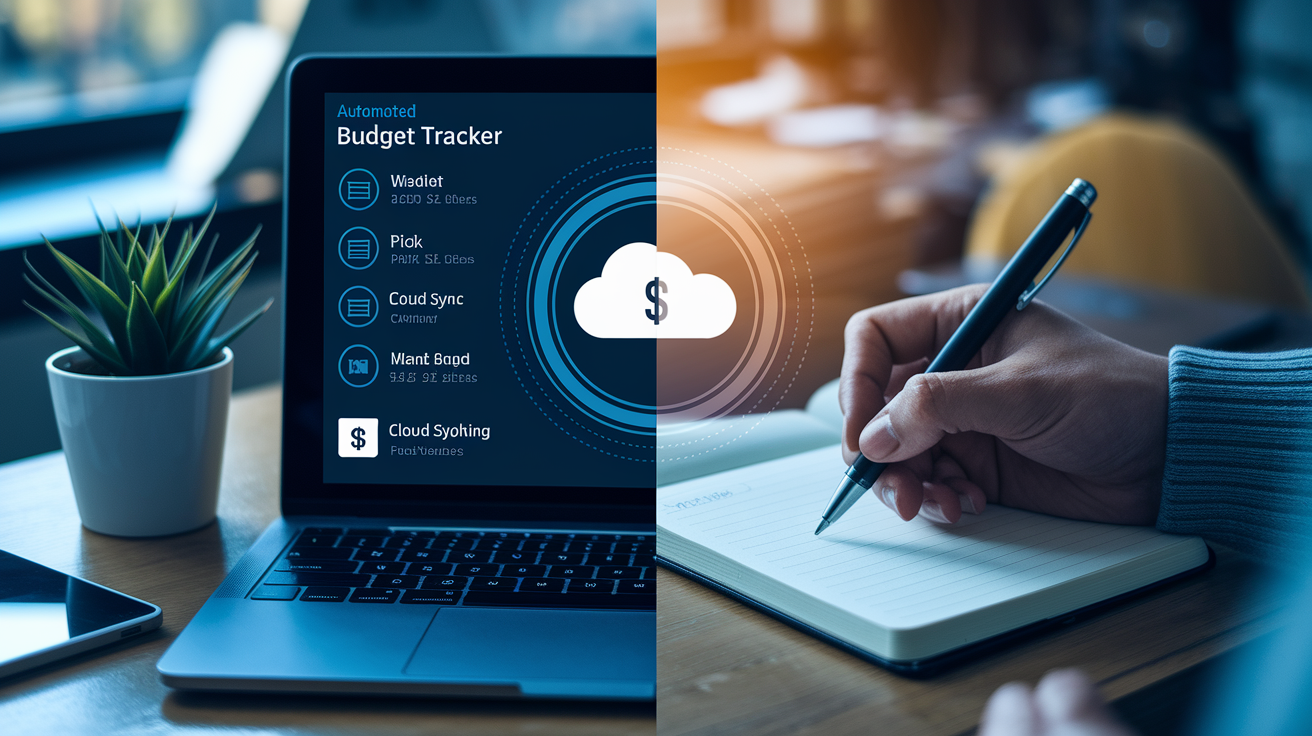
Automated trackers link to your bank accounts and credit cards, pulling in every transaction overnight. You open the app, review the list, confirm or fix a few categories, done. Biggest upside is speed: five minutes a week instead of thirty. Trade-off is handing over read-only access to your accounts and trusting the app’s security.
Manual trackers require typing in every expense as it happens or sitting down once a week with receipts and statements. Slower, but you see every dollar as you enter it, which makes overspending harder to ignore. Some people find that typing “$47 dining out” three times in one week is enough to change behavior.
| Method | Advantages | Drawbacks |
|---|---|---|
| Automated | Fast setup; continuous sync; no data entry; catches every transaction including subscriptions you forgot | Requires sharing bank credentials; monthly fees common; less awareness of individual purchases |
| Manual | Full control; no account linking; free or cheap; builds awareness with each entry | Takes time; easy to miss small purchases; needs weekly discipline |
Use automated tracking if you’ve got multiple accounts, irregular income, or a schedule that makes weekly data entry unrealistic. Go manual if you’re new to budgeting and need the behavior shift that comes from writing down every purchase, or if you’re uncomfortable linking accounts to third-party apps. Both work. The best one is whichever you’ll actually use three months from now.
Printable and Digital Budget Templates

Templates are pre-formatted sheets (printable PDFs or editable spreadsheets) that give you a ready-made structure without subscribing to an app or linking bank accounts.
Popular formats:
• Monthly budget worksheet – Income at the top, fixed expenses in one section, variable in another, calculates what’s left for savings or debt.
• Weekly spending tracker – Breaks the month into four weeks. Helps you stay on pace if paychecks arrive biweekly or if weekly check-ins keep you honest.
• 50/30/20 template – Pre-divides income into needs (50%), wants (30%), savings or debt (20%). Totals each category automatically.
• Zero-based budget sheet – Forces you to assign every dollar a job. Income minus all allocations should equal zero.
• Envelope tracker – Digital or printable version of the cash envelope method. Allocate set amounts to categories, track what’s left in each “envelope.”
• Debt payoff planner – Lists debts by balance or interest rate, tracks payments, calculates payoff timelines using snowball or avalanche methods.
• Sinking funds sheet – Tracks monthly contributions toward irregular expenses like car insurance, holiday spending, home repairs.
Templates work best for people who want full customization, prefer Google Sheets or Excel, or learn better building the budget themselves instead of letting an algorithm do it. Also fits anyone who doesn’t want to share bank logins or pay monthly subscriptions.
Step-by-Step Guide to Setting Up a Budget Tracker

Setting up takes about an hour the first time, then ten minutes a month to maintain once the structure’s in place.
Steps:
-
List all monthly income sources – Take-home pay, freelance deposits, side gig earnings, regular transfers like child support or rental income. Use net amounts (after taxes), not gross.
-
Write down fixed expenses with due dates – Rent, mortgage, car payment, insurance premiums, loan minimums, subscriptions, childcare, memberships. Pull exact amounts from statements or recurring charge emails.
-
Estimate variable expenses using past transactions – Review the last two or three months of bank and credit card statements. Average spending on groceries, fuel, utilities, dining out, shopping, entertainment.
-
Create categories that match your real spending – Start with ten to fifteen broad groups instead of fifty narrow ones. “Groceries” beats “produce,” “dairy,” “snacks,” and “beverages” for most people.
-
Set realistic limits for each category – Use past averages as a baseline, then adjust based on goals. If you spent $600 on dining out last month but want to cut back, set the new limit at $450 and track progress.
-
Assign leftover income to savings or debt – After covering needs and wants, direct what’s left toward an emergency fund, extra debt payments, or specific goals like vacation or down payment savings.
-
Link accounts or schedule weekly data entry – Using an automated app? Connect checking and credit accounts now. Manual tracker? Pick a consistent day (Sunday evening, Friday morning) to enter the week’s transactions.
-
Check progress weekly and reconcile monthly – Scan category totals once a week to catch overspending early. Run a full review at month-end to compare planned versus actual and adjust next month’s limits.
Consistency beats perfection. Missing a receipt or miscategorizing a charge won’t wreck your budget, but skipping three weekly check-ins in a row leaves you guessing instead of knowing.
Pros and Cons of Using Budget Trackers

Budget trackers give you clarity and control. You know exactly how much went to groceries this month, whether the electric bill spiked, and how close you are to your savings target. Automated tools catch recurring charges you forgot about (streaming services you signed up for during a free trial and never cancelled). Goal tracking turns vague intentions (“save more”) into specific progress bars that update every time you move money. The act of categorizing expenses, even when an app does most of it, builds awareness that shifts behavior over time.
But trackers add friction too. Manual entry takes time, and falling behind by a week or two makes catching up feel like homework. Automated apps often charge monthly fees that add up to $100 or more per year. Some overcomplicate things with too many categories, reports, and settings, turning a simple budget into a second job. Linking bank accounts makes some users uneasy, even with encryption and read-only access.
And no tracker can force you to follow the budget. It just shows you the numbers.
Frequently Asked Questions About Budget Trackers
• Do I really need a budgeting app, or can I just check my bank balance? – Checking your balance tells you what’s left right now, not where it went or whether you’re on track for the rest of the month. A tracker shows patterns (like $200 on coffee over thirty days) that a balance never reveals.
• How often should I update my budget? – Weekly check-ins (ten minutes) keep you on pace. Monthly reconciliation (thirty minutes) lets you adjust category limits and compare progress to goals. Daily updates aren’t necessary unless you’re actively paying down debt or recovering from overspending.
• Is manual entry better than automatic syncing? – Manual builds more awareness because you feel every transaction as you type. Automatic saves time and catches purchases you’d forget. Choose manual if you’re learning budgeting habits. Choose automatic once those habits stick or if your schedule won’t support weekly data entry.
• Can I share a budget tracker with my partner? – Most apps and shared spreadsheets allow multiple users. Look for tools with real-time sync so both people see the same updated totals. Apps like Honeydue and Zeta are built specifically for couples and include stuff like shared bill reminders.
• What’s the difference between a budget tracker and expense tracking? – Expense tracking records what you spent. Budget tracking compares spending to a plan and flags when you’re over or under. All budget trackers include expense tracking, but not all expense trackers include budgets or limits.
• How do I handle irregular income with a budget tracker? – Base your budget on your lowest expected monthly income, then allocate any extra toward savings or variable expenses when higher-income months arrive. Some tools let you set flexible category limits that adjust based on actual deposits.
Final Words
Choose one of the quick picks—Mint, YNAB, EveryDollar, or a Google Sheets template—and set it up this week. Start by listing income, adding regular expenses, and syncing or entering transactions.
We walked through how trackers work, the key features to compare, automated vs manual methods, template options, a step-by-step setup, pros and cons, and common questions to expect.
With consistent weekly check-ins, your budget tracker turns into a clear map of your money and helps you reach small wins fast. You’ve got this.
FAQ
Q: Do I need a budgeting app or tracker?
A: A budgeting app or tracker isn’t required, but it makes tracking income, expenses, and goals easier. Use an app for automation and reminders; use a template if you prefer manual control and privacy.
Q: How often should I update my budget?
A: You should update your budget weekly, or at minimum monthly. Weekly checks catch overspending quickly; monthly reviews let you adjust categories, update goals, and plan upcoming bills.
Q: Is manual or automated tracking better?
A: Manual tracking gives more control and awareness; automated tracking saves time and syncs transactions. Choose manual to learn habits or control entries, automated for convenience and steady updates.
Q: Can I share a budget with a partner?
A: You can share a budget with a partner through multi-user apps or shared Google Sheets. Agree on categories, joint goals, and a regular review rhythm to keep finances aligned and avoid surprises.
Q: Which budget tracker is best for beginners?
A: Mint is good for beginners who want automation; YNAB fits people wanting zero-based budgeting; EveryDollar is simple for envelope-style budgets; Google Sheets templates suit those wanting custom, low-cost control.
Q: How do I choose between app-based and template-based options?
A: Choose apps for bank syncing, notifications, and built-in goals; choose templates for privacy, flexibility, and no subscription fees. Match the option to how much automation and structure you want.