


Think budgeting spreadsheets are only for accountants? Think again.
A simple spreadsheet can stop money leaks, show where every dollar goes, and make bills less scary.
This post walks you through a quick Google Sheets or Excel setup, how to label Amount, Due Date, and Paid?, and how to group spending into real-life categories like Housing, Food, and Savings.
By the end you’ll have an easy-to-use budget sheet you can check on your phone and use to make smarter money decisions each month.
Getting Started With a Budget Spreadsheet Setup

Head to sheets.google.com or open Excel from your desktop. Google Sheets needs a Google account, Excel runs locally or through Microsoft 365. Once you’re in, click the green “+” in Sheets or “New Blank Workbook” in Excel. Cloud sheets let you check your budget from your phone, tablet, whatever. Makes daily updates way easier.
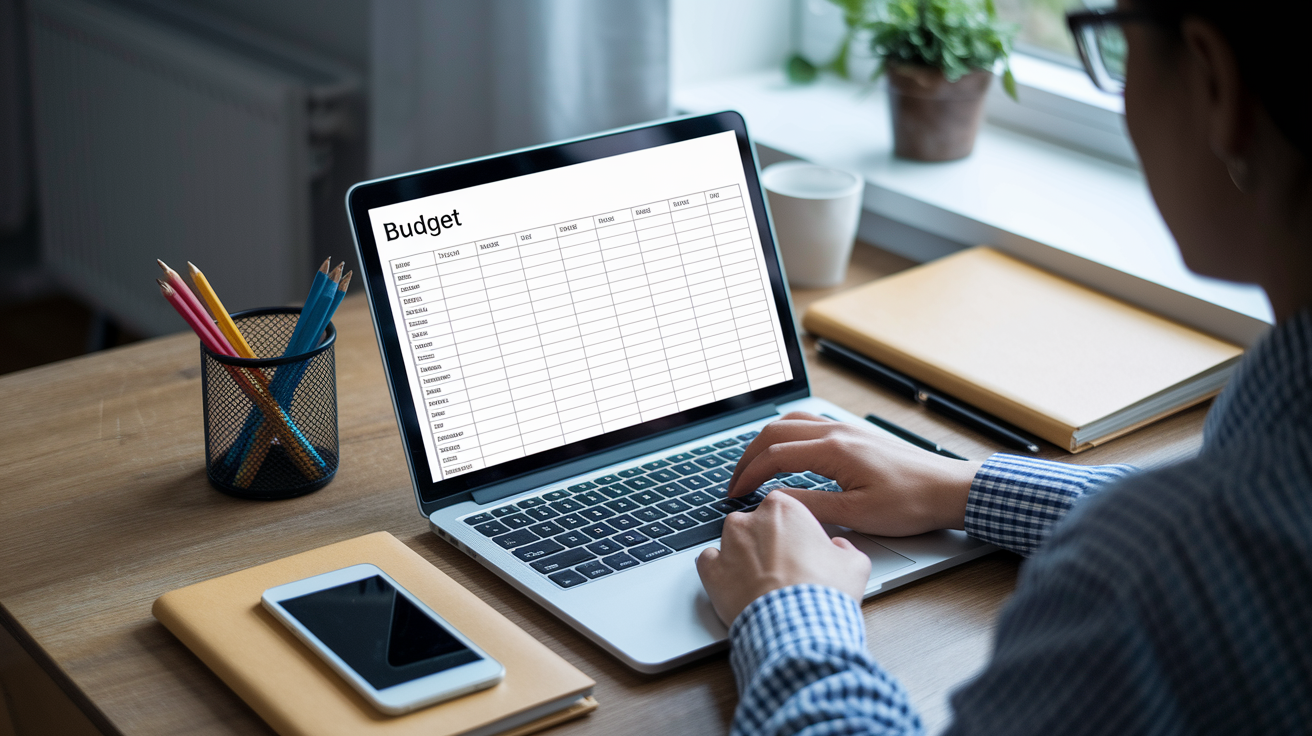
Label your columns in the first row. Type “Amount” in B1 for all your dollar figures. Column C is “Due Date” so you know when bills hit. Column D gets “Paid?” where you drop a Y or X after you handle it. Column A holds your category names: Income, Net Pay, Other Income, Expenses, Rent, Groceries, all that. The Amount column holds numbers, Due Date shows the day stuff’s scheduled, Paid? gives you a quick visual that you’ve taken care of it. Simple grid, every dollar tracked.
Name your file something you’ll recognize later, like “Monthly Budget – March 2026.” Save it by clicking File then Make a Copy in Sheets, or Save As in Excel. Drop it in a dedicated folder so you can grab it fast when payday rolls around.
Five steps to build your first budget sheet:
- Open Google Sheets or Excel, new blank file.
- Type “Amount” in B1, “Due Date” in C1, “Paid?” in D1.
- Column A gets your category labels starting row 2. Start with “Income,” then list your sources.
- Leave a blank row after income, type “Expenses,” list each spending category underneath.
- Save with a descriptive name, put it somewhere you won’t forget.
Organizing Budget Categories for Better Tracking

Categories turn a mess of numbers into a map that shows where your money actually goes. Group similar stuff together (Housing, Food, Transportation) and you’ll spot patterns fast. See which areas eat the most income each month. Pick categories that fit your real spending. If you’ve got pet expenses every month, make a “Pet Expenses” line. Rarely eat out? Combine dining and groceries into one “Food” bucket. The structure should match the decisions you want to track, not some template built for someone else’s life.
When you group expenses on purpose, you can adjust faster when cash gets tight. If “Entertainment” climbs higher than expected, you know whether to cut a streaming service or skip next month’s concert. Split “Savings” into “Emergency Fund” and “Vacation Fund” and you build accountability right into the sheet. Custom categories support your actual priorities and make monthly reviews quicker because you know exactly where to look when something feels wrong.
Eight budget categories to start with:
- Housing: mortgage or rent, property tax, homeowners or renters insurance, home maintenance
- Food: groceries, dining out, coffee shops, meal delivery
- Transportation: car payment, auto insurance, gas, public transit, rideshare
- Utilities: electric, gas, water, internet, phone, trash service
- Health: health insurance premiums, co-pays, prescriptions, gym membership
- Personal/Family: childcare, clothing, haircuts, charitable giving, hobbies
- Financing: credit card payments, student loans, personal loans, bank fees
- Savings: emergency fund, retirement contributions, investment deposits
Final Words
Open Google Sheets or Excel and create a new file. Label columns for Income, Expenses, Amount, Total, Due Date, and Paid? then enter your numbers and use SUM formulas to keep totals accurate.
Group expenses into clear categories like Housing, Food, Transportation, Utilities, Health, and Savings. Name and save the file clearly, or store it in the cloud so you can edit from any device.
This post showed a simple, step by step setup and category approach so you can start tracking money today. Try it, tweak as you go, and you’ll see how to use budget spreadsheet. You’re on the right track.
FAQ
Q: How do I set up a budget spreadsheet step-by-step?
A: To set up a budget spreadsheet step-by-step, open Google Sheets or Excel, create a new file, label rows and columns for Income, Expenses, Amount, Total, Due Date, Paid?, then start entering numbers.
Q: What columns should a beginner include in a budget spreadsheet?
A: Beginner columns should include Income, Expenses, Amount, Total, Due Date, and Paid?, with Income tracking money in, Amount for each line, Total summing groups, Due Date for bills, Paid? to mark payment status.
Q: How do I use SUM formulas in a budget spreadsheet?
A: Using SUM formulas requires typing =SUM(range) in the Total cell, selecting the correct cell range, and confirming. This adds rows automatically and keeps monthly totals updated.
Q: Should I use Google Sheets or Excel for my budget?
A: Using Google Sheets gives free cloud access across devices; choose Excel if you need advanced features or offline work. Both handle basic budgets, so pick based on device access and familiarity.
Q: How should I name and save my budget file for easy organization?
A: Naming and saving your budget file with year-month and purpose, like “Budget-2026-03-Household”, and storing it in a dedicated folder with cloud backup helps you find and update it later.
Q: How do I organize and customize budget categories to fit my lifestyle?
A: Organizing and customizing categories means grouping similar expenses, matching them to monthly habits, and adding or merging categories when goals change. Keep categories few enough to track and detailed enough to spot patterns.
Q: What common budget categories should I include?
A: Common budget categories include Housing, Food, Transportation, Utilities, Health, Personal/Family, Financing, Savings, and Other. Start with these and adjust amounts and names to match your spending.
Q: How do Due Date and Paid? columns help track bills?
A: Due Date and Paid? columns help track bills by showing when payments are due and whether they’re paid. Use Due Date to sort upcoming bills and Paid? to avoid late fees and missed payments.