


Think a smart security system is just a camera that sends an alert? Think again.
Modern setups link sensors, cameras, smart locks, alarms, and apps into one coordinated system you can actually use.
They don’t just scream. They give live video, access logs, remote control, and options for self or professional monitoring.
This post explains how these pieces work, which features make a real safety difference, common pitfalls to avoid, and how to pick a setup that protects your family without unnecessary cost or complexity.
A Clear Overview of Smart Home Security Systems
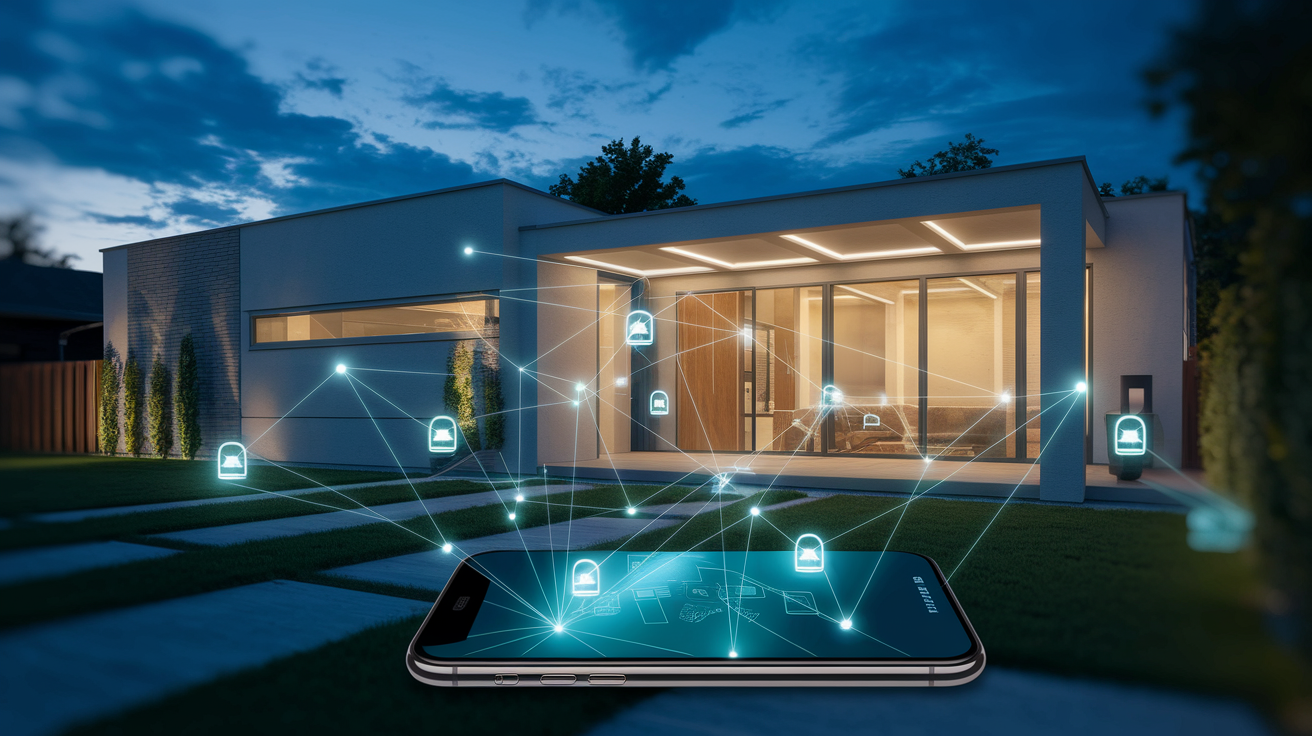
A smart home security system is a coordinated network of devices (sensors, cameras, alarms, and smart locks) that work together to detect threats, monitor your property, and notify you or authorities in real time. Unlike older alarm-only setups that scream when a sensor trips, these systems combine detection with information: live video, access logs, remote controls, and automation. Whether your door sensor trips while you’re at the grocery store or your doorbell camera captures a delivery, you see it instantly on your phone and decide what to do next.
Modern systems can be wired, wireless, or a hybrid of both. They communicate using protocols like Wi‑Fi, Bluetooth, Z‑Wave, Zigbee, or the newer Matter standard. The basic operation is straightforward: sensors watch entry points and movement zones, a central hub (or your phone) processes the signals, and a cloud-connected app delivers alerts, stores video clips, and lets you arm, disarm, or unlock devices from anywhere. Some people monitor their own systems through the app. Others pay for 24/7 professional monitoring that calls emergency services on your behalf. Homes without any security system are 300 percent more likely to be burglarized than homes with one, which is why even a basic setup (a few sensors, a camera, and visible yard signs) makes a measurable difference.
Core features you’ll find in most smart home security systems:
- Real-time alerts sent to your phone when motion is detected, a door opens, or a camera spots a person
- Live and recorded video from indoor, outdoor, and doorbell cameras, accessible on demand through the mobile app
- Remote lock and unlock for smart deadbolts, with temporary guest codes and access logs showing who came and went
- Automation routines that arm the system when you leave, lock doors at bedtime, or turn on lights if motion is detected at night
- Monitoring options: handle everything yourself via smartphone alerts, or subscribe to professional 24/7 services that dispatch police or fire
- Power and connectivity backups, including cellular failover and battery reserves, so the system stays online during outages
Key Components in Modern Smart Home Security Systems
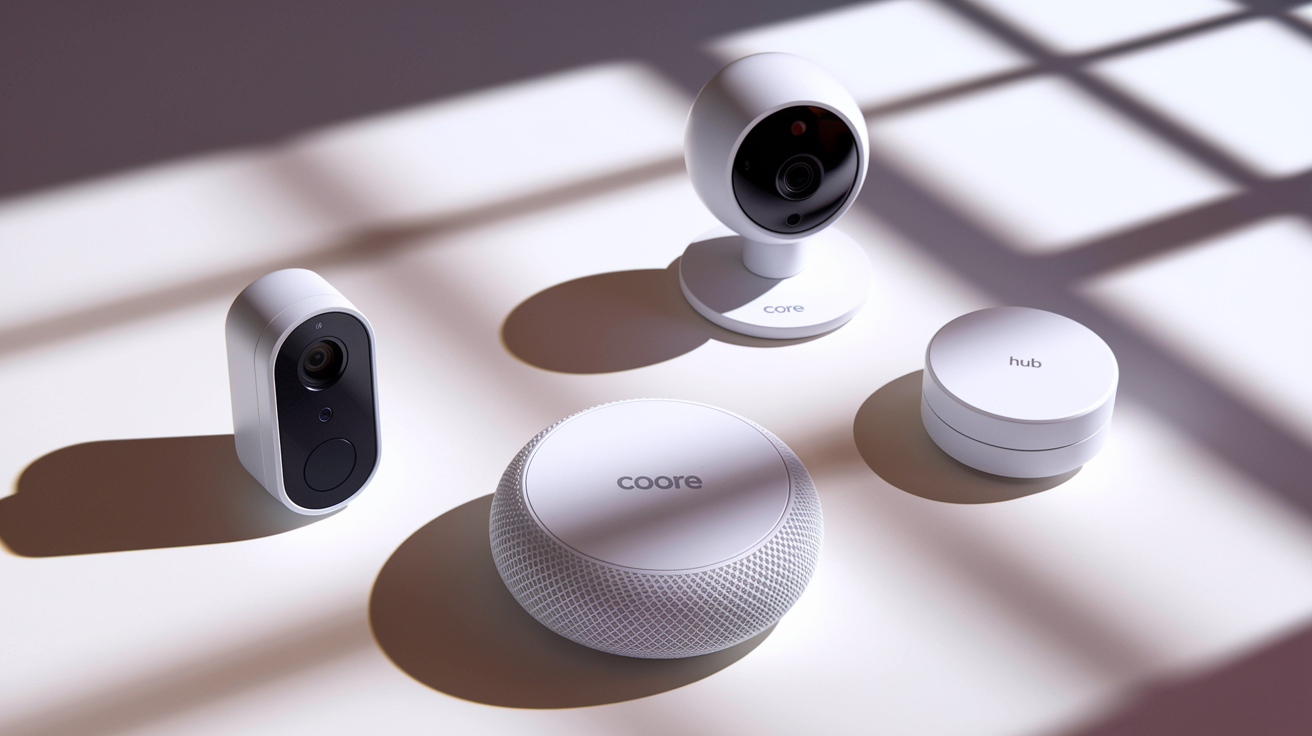
Every smart security system is built from a set of core devices that work together. The exact mix depends on your home layout, your priorities, and your budget. But most setups include sensors to detect intrusions, cameras to record what’s happening, smart locks to control entry, and alarms or notifications to alert you or scare off intruders. Understanding what each piece does helps you decide which ones matter most for your situation.
Sensors are the eyes and ears of the system. Motion detectors use passive infrared to spot body heat when someone moves through a room or hallway. Contact sensors attach to doors and windows and trigger when the two halves separate, perfect for knowing if a door opened while you were away. Glass-break sensors listen for the high-frequency sound of breaking glass and are often placed near large windows or sliding doors. Garage door sensors confirm whether the door is fully closed, which is important since garages are a common weak spot. Sensors are wireless in most modern systems, battery-powered, and small enough to stick onto a frame or wall with adhesive tape or a single screw.
Alarms are the muscle. When a sensor trips or a camera sees motion in an armed zone, high-decibel sirens (often 85–110 dB) blast to startle the intruder and alert neighbors. Some systems use the hub itself as a siren. Others include standalone battery-powered alarms or outdoor sirens mounted under the eaves. Even if you lean on smartphone alerts, having a loud local alarm adds a layer of deterrence. Visible deterrents matter, too. Yard signs and window stickers that say “Protected by [System Name]” can discourage casual break-ins before anyone even tests a door.
Temperature controllers and smart thermostats round out the component list. Beyond energy savings, they can prevent freeze damage by alerting you if the indoor temperature drops below a safe threshold during winter. Some systems bundle these devices to create a unified smart home platform that manages comfort, security, and energy in one app.
| Component | Primary Function | Typical Placement |
|---|---|---|
| Contact Sensor | Detects door/window opening | Entry doors, ground-floor windows, sliding doors |
| Motion Detector | Detects body heat and movement | Hallways, stairways, common rooms, garages |
| Camera (Indoor) | Live streaming and event recording | Living room, nursery, foyer, basement |
| Camera (Outdoor) | Perimeter monitoring and deterrence | Front porch, driveway, backyard, side gates |
| Smart Lock | Remote locking and access logs | Front door, back door, attached garage entry |
Cameras
Cameras give you eyes on what’s happening. Indoor cameras watch for unexpected motion when you’re away (like a pet sitter arriving or a teenager sneaking friends in) and record clips you can review later. Outdoor cameras cover driveways, porches, and backyards. Weatherproof housings (rated IP65 or higher) protect them from rain and snow. Video doorbells combine a camera with a doorbell button and two-way audio, so you can see and talk to visitors even when you’re not home. For any camera to be useful for identification, you want at least 1080p resolution. 720p is too blurry to make out faces or license plates from more than a few feet away. Night vision (infrared LEDs) is essential if you want footage after dark. Without it, outdoor cameras are useless at night unless you leave porch lights on constantly.
Smart Locks & Access Control
Smart locks replace or retrofit onto your existing deadbolt and let you lock or unlock the door from your phone, grant temporary access codes to guests or service workers, and see a log of who unlocked the door and when. Entry methods include keypads (four- to eight-digit codes), biometric fingerprint readers, Wi‑Fi or Bluetooth app control, and physical keys as a backup. Temporary codes are practical. “Give the dog walker access from 1 to 3 PM on weekdays only,” and you can delete them instantly when they’re no longer needed. Because locks connect to your hub or app, they integrate with the rest of your security system: unlocking the front door can automatically disarm the alarm, or locking all doors at 10 PM can arm the system and turn off the lights in one routine.
Connectivity Protocols That Power Smart Security Devices
Smart security devices talk to each other and to your phone using wireless protocols. The protocol determines range, power consumption, bandwidth, and reliability. Most systems use more than one protocol because different devices have different needs: cameras stream lots of data and need high bandwidth, while door sensors send tiny packets once in a while and prioritize battery life. Understanding the basics helps you avoid compatibility headaches and make sure your devices stay online when you need them.
Wi‑Fi is the most common protocol for cameras and video doorbells because it offers the bandwidth for live streams and cloud uploads. The downside is that Wi‑Fi depends on your home router. If the router reboots, loses power, or if your internet connection drops, Wi‑Fi devices go offline until service restores. Bluetooth and Bluetooth Low Energy (BLE) work for short-range pairing (unlocking a smart lock as you walk up to the door, or pairing a new sensor to the hub), but Bluetooth alone can’t reach across a whole house. Z‑Wave and Zigbee are low-power mesh protocols designed for sensors, locks, and light switches. Each device acts as a signal repeater, so adding more devices actually strengthens the network. They run on separate radio frequencies (Z‑Wave around 900 MHz in North America, Zigbee at 2.4 GHz), which keeps them isolated from Wi‑Fi congestion. Matter is the newest standard, backed by Apple, Google, Amazon, and others, and aims to let devices from different brands work together without proprietary hubs, though adoption is still rolling out.
Quick protocol comparison:
- Wi‑Fi: high bandwidth, long range within the home, relies on router and internet connection
- Bluetooth/BLE: very low power, short range (10–30 feet), ideal for pairing and proximity unlocking
- Zigbee: low power, self-healing mesh, moderate range, requires a compatible hub
- Z‑Wave: low power, mesh network, less interference than Zigbee, limited number of devices per network
- Matter: emerging interoperability standard, simplifies device pairing across brands, still growing
| Protocol | Strength | Weakness | Best Device Type |
|---|---|---|---|
| Wi‑Fi | High bandwidth, existing home infrastructure | Fails if router or internet goes down | Cameras, video doorbells |
| Zigbee / Z‑Wave | Low power, mesh extends range, no internet needed for local operation | Requires hub, limited bandwidth | Sensors, smart locks, light switches |
| Bluetooth LE | Very low power, simple pairing | Short range, not suitable for whole-home coverage | Proximity locks, setup/pairing tasks |
| Cellular (LTE) | Independent of home internet, works during outages | Monthly carrier fees, slower than local Wi‑Fi | Hub backup, standalone alarm panels |
How Smart Home Security Systems Operate Day-to-Day
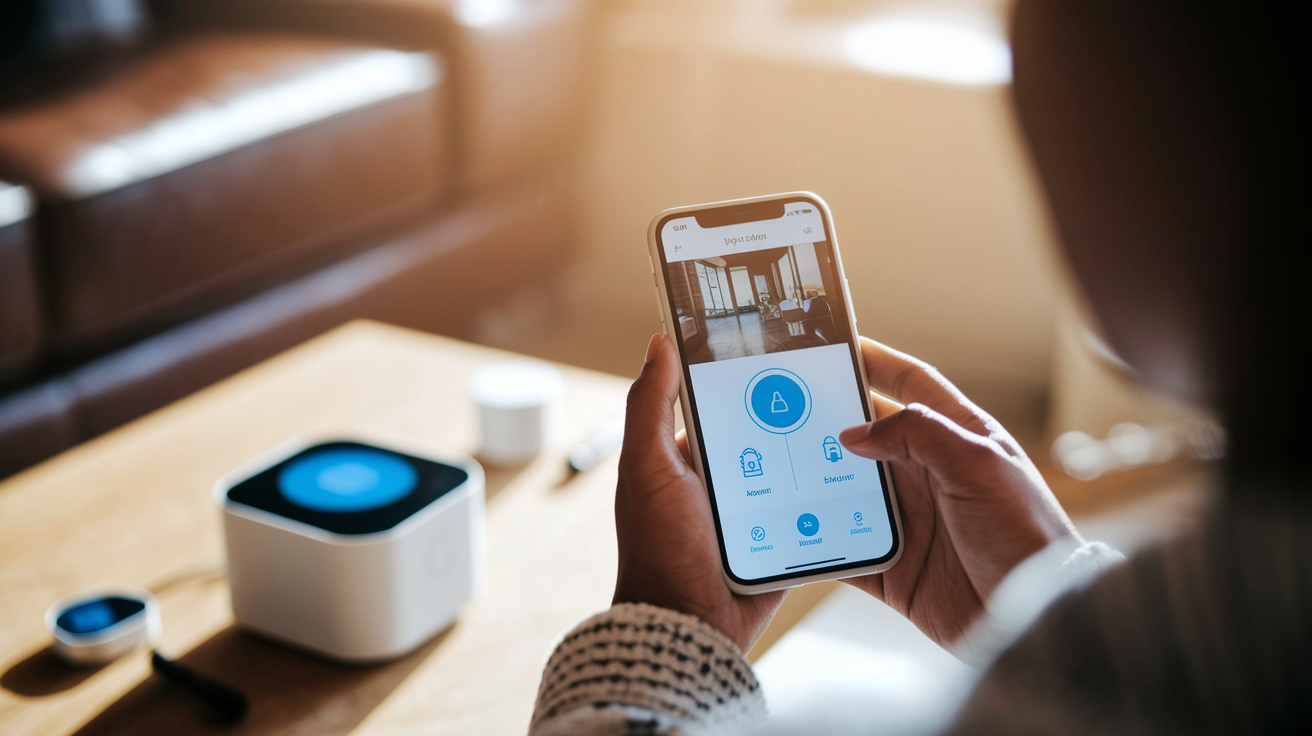
Once installed, a smart security system runs in the background and jumps into action when something happens. The flow is simple: a sensor detects an event, the hub (or a device acting as a hub) processes the signal, and the system responds by sounding an alarm, recording video, sending you a push notification, or all three. You control the system’s behavior (what’s armed, what triggers an alert, and what happens next) through the mobile app or a wall-mounted keypad.
Event-based recording means cameras don’t record 24/7. They wake up and start capturing when motion is detected, a door opens, or the doorbell button is pressed. This saves storage space and battery life (for wireless cameras) and makes it easier to find the clips that matter instead of scrubbing through hours of empty footage. Modern systems use activity zones. You draw boxes on the camera’s field of view in the app to tell it which areas to watch and which to ignore. For example, you might mask out a busy sidewalk so passing pedestrians don’t trigger alerts, but keep the zone that covers your front steps active. AI-powered detection goes further by classifying what triggered the event: person, vehicle, animal, or package. Pet-immune motion sensors use dual infrared beams or software algorithms to ignore small animals (under 40 pounds, typically) so your dog doesn’t set off the alarm every time it walks past the sensor.
Push notifications arrive on your phone within seconds of the event. The alert tells you which device triggered (e.g., “Front Door Contact Sensor Opened”) and often includes a thumbnail or short video clip if a camera is involved. From the notification, you can open the app to view the live feed, sound the siren manually, or disarm the system if it’s a false alarm. If you have professional monitoring, the monitoring center receives the same alert and may call you to verify before dispatching emergency services. Video verification (where the operator reviews your camera footage) helps prioritize real threats and reduces false dispatches.
Typical detection-to-alert path:
- Sensor detects activity (contact sensor separates, motion detector sees heat movement, glass-break sensor hears high-frequency sound).
- Signal sent to hub via Zigbee, Z‑Wave, Wi‑Fi, or another protocol; hub logs the event with a timestamp.
- Hub evaluates system state (armed vs. disarmed, which zones are active, countdown timers for entry delays).
- Response triggered (siren sounds, camera starts recording, automation runs, app sends push notification).
- Monitoring center alerted (if professional monitoring is active) and may call you or dispatch emergency services based on your response or lack of response.
Professional Monitoring vs DIY Monitoring Options

You have two basic choices for how alerts are handled: monitor the system yourself through the app, or pay a service to watch it for you around the clock. Each path comes with different costs, responsibilities, and peace of mind.
Professional monitoring means a 24/7 call center receives every alarm signal, reviews the alert (and any available video), and takes action: calling you to confirm, dispatching police or fire, or logging it as a false alarm. The advantage is reliability. If you’re asleep, traveling, or can’t get to your phone, someone else is watching. Video verification makes this more effective. The operator can see footage of the event and tell the 911 dispatcher “verified break-in, suspect visible on camera” instead of “unverified alarm,” which often gets lower priority. Monthly monitoring fees typically range from fifteen to sixty dollars, depending on the provider and the level of service (some include cloud storage and cellular backup; others charge extra). Self-monitoring, used by about 8 percent of U.S. smart security owners, puts you in charge. You get the same push notifications and live video feeds, but you decide whether to call the police, check in remotely, or ignore it as a false alarm. Self-monitoring is common with DIY systems and costs little or nothing beyond the hardware and optional cloud storage fees.
Professional vs. DIY comparison:
- Professional: 24/7 trained operators, emergency dispatch, video verification for faster police response, monthly subscription required, less hands-on responsibility
- DIY: smartphone alerts only, you decide next steps, no monthly fees (or low fees for cloud storage), full control, requires you to be reachable and responsive
- Hybrid option: some systems let you self-monitor most of the time and activate professional monitoring only when traveling or during high-risk periods
- Response time: professional monitoring can dispatch help within minutes; DIY depends on how quickly you see the alert and act
- False alarms: professional services may charge fees after repeated false dispatches; DIY has no such penalty but wastes your time
- Peace of mind: professional monitoring covers you when unavailable; DIY works well if you’re always near your phone and comfortable making emergency calls yourself
Installation Paths for Smart Home Security Systems
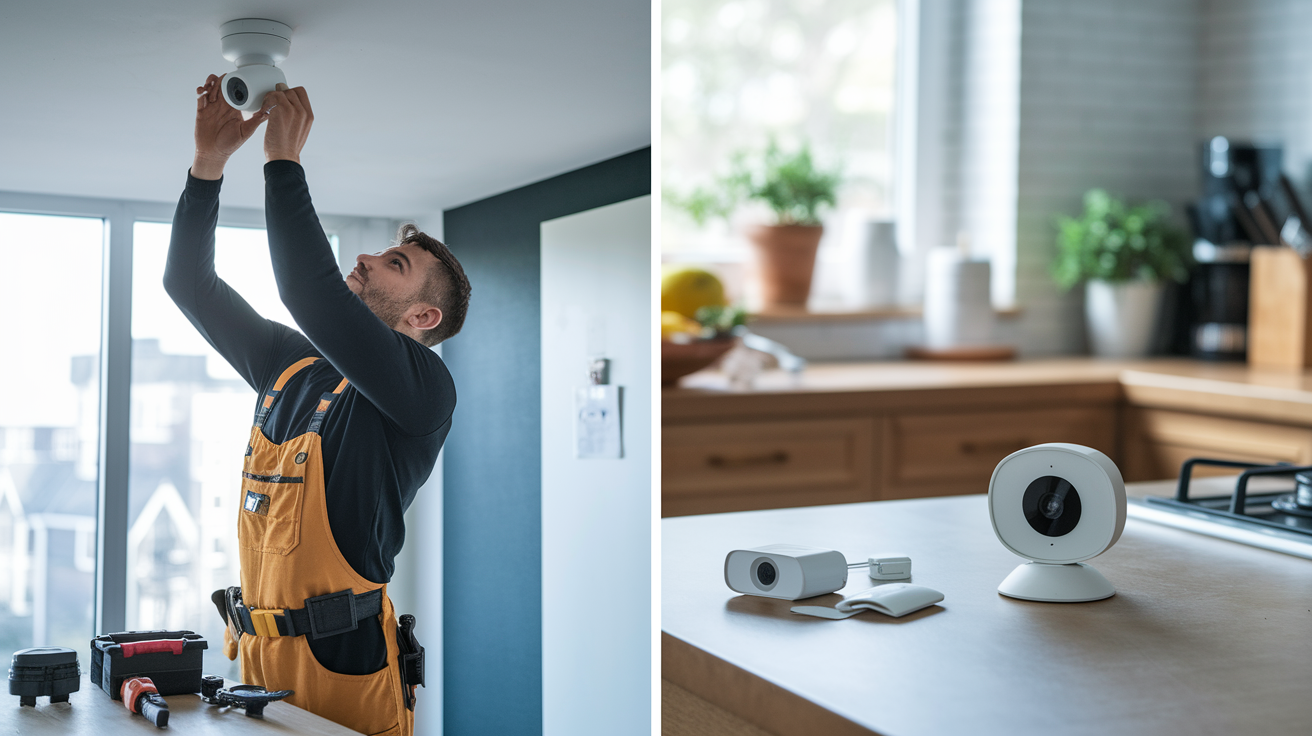
How you install a system shapes the upfront cost, the quality of sensor placement, and how much troubleshooting you’ll handle on your own. Professional installation means a technician comes to your home, surveys entry points and camera angles, mounts devices in optimal spots, tests everything, and walks you through the app. You pay for the service (sometimes a few hundred dollars, though some companies waive the fee if you sign a monitoring contract), but you get expert placement and a warranty that covers the install work. DIY installation uses wireless kits that you set up yourself: stick sensors on doors, mount cameras with included screws or adhesive strips, plug in the hub, and pair everything through the app. DIY saves money and gives you flexibility to move devices later, but you’re responsible for choosing good locations, running any needed wiring (for wired cameras or power), and fixing connectivity issues.
Modular systems let you start small (hub, a couple of sensors, one camera) and expand over time. You add new devices through the app by scanning a QR code or pressing a pairing button. The hub detects the new device and adds it to your dashboard. This phased approach spreads out the cost and lets you test the system before committing to full coverage. Wireless components dominate the DIY market because they install in minutes and don’t require running cables through walls. Wired systems, more common in professional installs, offer continuous power (no battery changes) and can’t be jammed by wireless interference, but they cost more to install and are harder to relocate.
Maintenance is straightforward but essential. Wireless sensors run on batteries that last six months to two years. The app will warn you when a battery is low. Replace them promptly. Sensors with dead batteries are invisible to the system. Firmware updates add features and patch security flaws. Most hubs update automatically, but cameras and locks may need manual approval in the app. Test your system monthly: arm it, walk past a motion sensor, open a monitored door, and confirm that alerts arrive on your phone. Check camera angles seasonally. Tree branches and landscaping grow, blocking views you had in spring.
Typical DIY Installation Steps
- Survey your home and list all entry points (doors, windows, garage) and high-traffic areas you want to monitor with cameras or motion sensors.
- Unbox the kit and charge or insert batteries into sensors, cameras, and the hub; plug the hub into your router via Ethernet if required.
- Download the mobile app and create an account; follow the in-app setup wizard to connect the hub to your Wi‑Fi network.
- Pair sensors one by one: scan QR codes, press pairing buttons, or follow app prompts; name each sensor clearly (e.g., “Front Door Contact,” “Garage Motion”).
- Mount sensors and cameras using adhesive strips, screws, or magnetic mounts; place contact sensors on door frames (magnet on the door, sensor on the frame within half an inch).
- Set activity zones and rules in the app: define which rooms or devices arm in “Home” mode vs. “Away” mode, configure entry/exit delays, and set up notification preferences.
- Test the full system: arm it, trigger each sensor, and verify alerts arrive; check camera live feeds and review recorded clips to confirm everything works before relying on it.
Smart Home Integration & Security Automation Features

A smart security system becomes more useful when it talks to the rest of your home. Integration with platforms like Apple HomeKit, Google Assistant, Amazon Alexa, Samsung SmartThings, or Matter-enabled hubs means you control locks, lights, thermostats, and cameras from one app and create automations that connect devices in ways that make daily life easier and your home more secure.
Automations turn “if this, then that” logic into real actions. Common examples: if the system arms in “Away” mode, lock all doors, set the thermostat to eco mode, and turn off every light. If a motion sensor trips at night while the system is armed, turn on the hallway lights, start recording on the nearest camera, and send a push alert. If you unlock the front door with a valid code between 3 and 6 PM on weekdays, disarm the system automatically so your kids don’t trigger the alarm when they get home from school. Geofencing uses your phone’s location to trigger actions. Arm the system when the last family member leaves a defined radius around your home, or disarm it when the first person arrives.
Away mode and Home mode (sometimes called “Stay” mode) let you customize which sensors are active. Away mode arms everything: doors, windows, motion detectors, cameras. Home mode arms perimeter sensors (doors and windows) but disables interior motion detectors so you can move around the house without tripping the alarm. Some systems add a third “Night” mode that arms doors and windows but also activates motion sensors in common areas like the living room or garage while leaving bedroom zones disarmed. Smart locks integrate deeply here. Temporary guest codes work only during scheduled time windows, and you can set the lock to auto-lock every night at 10 PM or whenever the system arms.
Sample automation scenarios:
- Morning disarm routine: first person to unlock the front door between 6 and 9 AM disarms the system, raises the thermostat to 70°F, and turns on the kitchen lights
- Vacation simulation: randomize interior lights on and off between 7 PM and 11 PM to make it look like someone’s home, even when you’re away for two weeks
- Package delivery: doorbell camera detects a person and sends you a live-feed notification; you unlock the front door remotely via the app for the delivery driver to leave the package inside, then lock it again 30 seconds later
- Nighttime motion alert: if the garage motion sensor trips between midnight and 5 AM, the system sounds a chime (not the full siren), turns on the garage lights, starts recording, and sends a high-priority push alert
- Auto-lock at bedtime: every night at 10 PM, all smart locks engage, the system arms in Home mode, and the thermostat drops to 68°F
- Emergency scene: if smoke detector activates, unlock all doors automatically (so occupants can escape), turn on all lights, and send alerts to every family member’s phone
Cost Breakdown of Smart Home Security Systems
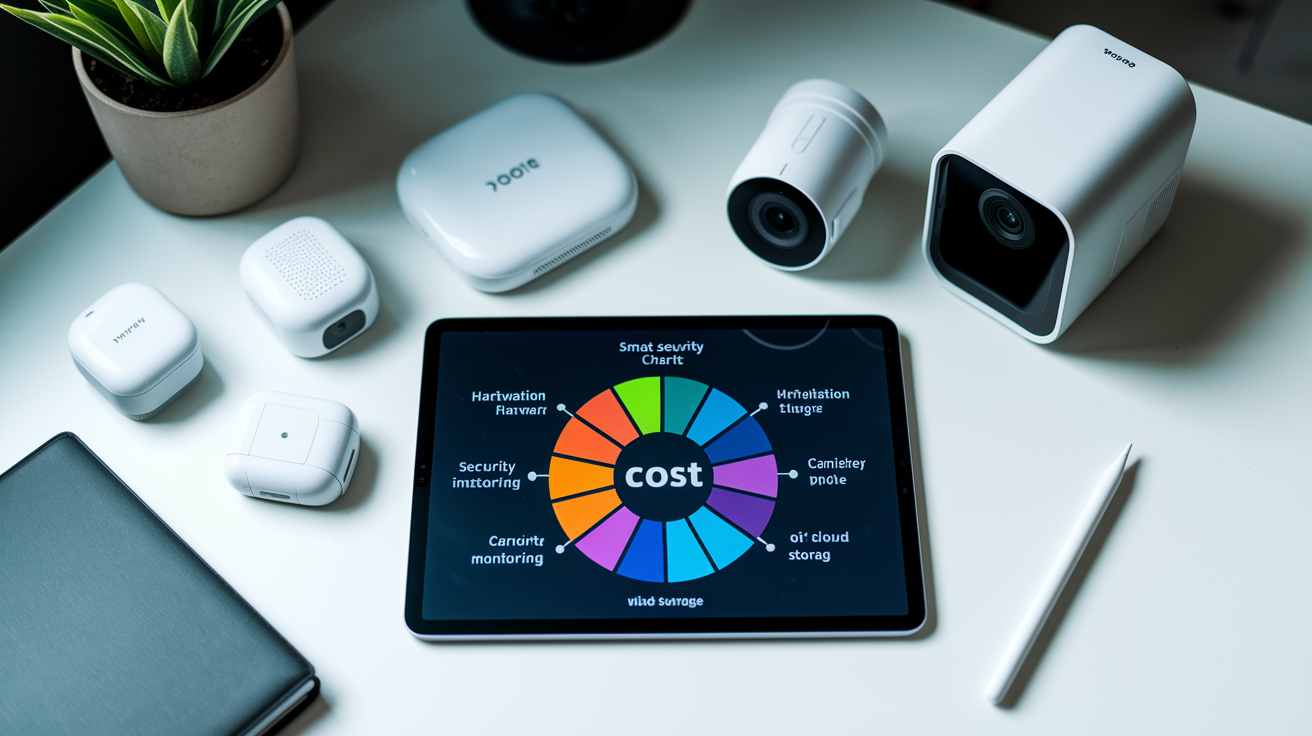
Understanding where the money goes helps you budget and compare options. Smart security costs fall into four buckets: hardware (the devices themselves), installation (professional setup fees or your own time for DIY), recurring monitoring fees, and optional extras like cloud storage or cellular backup. Your total depends on how many devices you need, whether you pay for professional monitoring, and which features matter to you.
Hardware costs vary widely. A basic DIY starter kit (hub, two contact sensors, one motion detector, and a keypad) runs about one hundred to two hundred dollars. Add cameras and the price climbs. Indoor cameras start around thirty to sixty dollars each, outdoor cameras with weatherproofing and night vision cost sixty to one hundred fifty dollars, and video doorbells range from eighty to two hundred fifty dollars. Smart locks add another one hundred to three hundred dollars depending on features (basic keypad vs. biometric scanner with Wi‑Fi). If you want full coverage for a three-bedroom house (ten to fifteen sensors, three to five cameras, two smart locks, a hub, and a siren), expect hardware costs between eight hundred and two thousand dollars. Professional installation fees, when not bundled or waived, typically add two hundred to five hundred dollars. That figure is sometimes promoted as a “five-hundred-dollar installation value” in marketing, though actual labor costs vary by region and complexity.
Monthly monitoring fees are optional but common. Professional 24/7 monitoring services charge fifteen to sixty dollars per month and often require annual or multi-year contracts. That fee usually covers alarm monitoring, emergency dispatch, and sometimes cellular backup for the hub. Cloud storage for video clips adds another cost if not included: three to ten dollars per month per camera, or ten to thirty dollars for unlimited cameras. Self-monitoring avoids these recurring fees entirely, or you pay a small cloud-storage subscription (five to fifteen dollars per month) for rolling video history. Warranty coverage is worth checking. Many systems include one- to two-year hardware warranties, and some premium brands offer up to five years. Refund windows (often thirty days) let you test the system and return it if it doesn’t fit your needs.
| Cost Category | What It Includes | Typical Range / Notes |
|---|---|---|
| Hardware (devices) | Hub, sensors, cameras, locks, keypad, siren | $100–$2,000+ depending on coverage; starter kits ~$150, full-home systems $800–$2,000 |
| Installation | Professional technician placement and setup vs. self-install | DIY: $0 (your time); professional: $200–$500 (sometimes waived with monitoring contract) |
| Monitoring (monthly) | 24/7 alarm center, emergency dispatch, cellular backup | Self-monitoring: $0–$15/mo for cloud storage; professional: $15–$60/mo, often requires contract |
| Cloud Storage (monthly) | Rolling video history (7–30 days), clip downloads | $3–$10/mo per camera or $10–$30/mo for unlimited cameras; some systems include limited free storage |
Practical Real-World Smart Security Scenarios

Seeing how smart security works in everyday situations makes the components and features feel less abstract. Here are a few common use cases that show the system in action, from delivery notifications to night-time motion alerts and temporary guest access.
A delivery arrives while you’re at work. Your video doorbell detects motion and a person, sends a push alert to your phone with a thumbnail, and starts recording. You open the app, see the delivery driver on the live feed, and use two-way audio to say “Just leave the package by the door, thanks.” The driver waves at the camera and walks away. The system saves a thirty-second clip tagged “Person Detected, Front Door, 2:14 PM” so you can review it later or share it if the package goes missing. If you’d enabled the temporary unlock feature ahead of time, you could have unlocked the door remotely for the driver to place the package inside the foyer, then locked it again from the app as soon as they left.
It’s 11 PM and everyone’s asleep. The garage motion detector trips. Maybe the cat snuck in earlier, or maybe someone’s trying to break in through the side door. The system is in Home mode, which arms perimeter doors and the garage but not the upstairs hallway. The motion triggers a chime notification on your phone (not the full siren, because you configured garage motion to “alert only” during night hours). You open the app, check the garage camera’s live feed, and see it’s just the cat knocking over a broom. You dismiss the alert and go back to sleep. If the feed had shown an intruder, you’d have triggered the siren manually and called 911 from the app.
Your parents are visiting for the weekend. Instead of hiding a spare key under the mat, you create a temporary access code on your smart lock valid Friday through Sunday, 8 AM to 10 PM. You text them the code. When they arrive Friday afternoon, they punch in the code, the lock opens, and the system logs “Front Door Unlocked, Guest Code 3, 4:32 PM.” The lock auto-disarms the alarm for the entry delay period so they don’t trip it. Sunday night at 11 PM, the code expires automatically. You don’t have to remember to delete it, and your parents can’t accidentally use it again next month.
Five real-life smart security moments:
- Child arrives home from school: contact sensor on the front door sends “Front Door Opened, 3:22 PM” alert; you check the doorbell camera clip, confirm it’s your daughter, and know she’s home safely
- Night-vision catch: outdoor camera with infrared LEDs records a raccoon rifling through your trash at 2 AM; you review the clip in the morning and realize you need a locking trash-can lid
- Activity zone success: camera pointed at your driveway ignores cars passing on the street (masked zone) but alerts you when someone walks up your driveway toward the house
- Auto-lock reminder: you forgot to lock the back door before bed; at 10 PM, the smart lock engages automatically per your schedule, and the system arms in Home mode
- Two-way audio deterrent: camera detects a person loitering near your car; you tap the microphone button in the app and say “Can I help you?” loudly through the camera’s speaker; the person leaves immediately
Smart Security Glossary for Beginners

If you’re new to smart security, you’ll run into terms that sound technical but aren’t hard once you know what they mean. This glossary covers the basics so you can read product pages and app settings without guessing.
Ten terms every beginner should know:
- Sensor: a device that monitors a specific condition (door position, motion, glass vibration, temperature) and sends a signal to the hub when the condition changes
- Hub (control panel): the central brain of the system that receives signals from sensors, processes rules, triggers alarms, and communicates with your phone and the monitoring center
- Wi‑Fi sensing: an emerging technology that uses changes in Wi‑Fi signal patterns to detect motion or presence without needing traditional sensors; still experimental in most consumer systems
- Mesh network: a communication method (used by Zigbee and Z‑Wave) where each device relays signals to nearby devices, extending range and improving reliability across the whole house
- Tamper detection: a feature that alerts you if someone tries to remove, disable, or open a sensor or hub; often uses a small switch inside the device casing
- Event-based recording: cameras that record only when triggered by motion, a sensor, or a manual command, rather than recording continuously 24/7
- Partitioning (zones): dividing your home into areas that can be armed or disarmed independently; for example, arming the garage and basement while leaving the main floor disarmed
- ARM modes: preset system states like “Away” (everything armed), “Home” (perimeter armed, interior sensors off), and “Disarmed” (nothing armed); you switch modes via app or keypad
- Firmware update: software installed on the hub, cameras, or sensors that fixes bugs, adds features, or patches security vulnerabilities; most devices update automatically or prompt you in the app
- Encryption: scrambling data (video streams, sensor signals, lock commands) so it can’t be intercepted and read by someone else; look for AES-128 or AES-256 encryption and TLS for cloud communication
Secure device onboarding means pairing new sensors or cameras to your system using encrypted handshake protocols so neighbors can’t hijack your devices during setup. Multi-factor authentication (MFA) adds a second verification step (a code texted to your phone, for example) when you log into the app from a new device, reducing the risk that a stolen password gives someone full access to your system. Routine firmware updates close security holes that hackers discover over time. Set devices to auto-update or check monthly and apply updates manually if your system doesn’t support automatic patching.
Future Trends in Smart Home Security Systems
Smart security is evolving fast. What works today will look basic in a few years as new protocols, AI improvements, and sensor technologies reach the market. Staying aware of these trends helps you choose systems that won’t feel outdated quickly and that can grow with new features through software updates.
Matter is the biggest interoperability push in smart home history. Backed by Apple, Google, Amazon, Samsung, and others, Matter is a unified standard that lets devices from different brands work together without proprietary hubs or complicated integrations. A Matter-certified lock from one company will pair directly with a Matter hub from another company and show up in your Apple Home, Google Home, or Amazon Alexa app without custom drivers. Early Matter devices are shipping now, and adoption will accelerate over the next few years. Look for the Matter logo when buying new hardware if you want maximum flexibility.
AI-driven detection is getting smarter and faster. Current systems can tell a person from a pet or a car, but next-generation AI will recognize familiar faces (your family vs. a stranger), detect unusual behavior (someone lingering near a window for two minutes), and reduce false alarms by learning your household’s normal patterns. Some cameras already do this locally using edge processing, running AI algorithms on a chip inside the camera instead of uploading every frame to the cloud, which cuts latency, protects privacy, and works even if your internet is down.
Wi‑Fi sensing uses the radio waves your existing Wi‑Fi network already broadcasts to detect motion, breathing, and even falls. It’s passive (no cameras or sensors required) and works through walls, which means one device could monitor an entire floor. The technology is still being refined for consumer use, but pilot programs are testing it for elderly-care monitoring and whole-home occupancy detection. Expect to see Wi‑Fi sensing integrated into security hubs and routers within the next couple of years as a supplement to traditional motion sensors.
Five emerging smart security technologies:
- Matter-enabled ecosystems: universal device compatibility, simpler setup, and the ability to mix brands freely without worrying about protocol lock-in
- Edge AI processing: cameras and sensors analyze footage locally for faster alerts, better privacy, and continued operation during internet outages
- Facial recognition for access control: smart locks and doorbell cameras that unlock automatically for recognized family members and send alerts for unknown faces
- Wi‑Fi sensing: passive motion and presence detection using existing wireless infrastructure, no additional sensors or cameras required
- Unified automation platforms: one app controlling security, lighting, climate, entertainment, and energy in coordinated scenes that adapt based on time, occupancy, and learned behavior
Final Words
Sensors spot motion, the hub decides what to do, and your phone pings with a live feed — that’s the everyday flow this article walked you through. We covered the parts, the protocols, how alerts work, monitoring choices, installation paths, costs, real-life examples, and what’s coming next.
Take a moment to match features to your home, pick the right connectivity, and choose self or professional monitoring. Keep devices updated and use strong logins. For a clear starter guide, this post leaves smart home security systems explained and ready to act on.
FAQ
Q: What is a smart home security system and how does it work?
A: A smart home security system is a set of sensors, cameras, locks, a hub, and an app that detect activity, process events, then send alerts, trigger recordings, or activate alarms and automations.
Q: What are the core components of a smart home security system?
A: The core components are motion and contact sensors, glass‑break detectors, indoor/outdoor/doorbell cameras, smart locks, a central hub, alarms, and cloud or local recording and app controls.
Q: How do indoor, outdoor, and doorbell cameras differ?
A: Indoor, outdoor, and doorbell cameras differ by placement, weatherproofing, field of view, and features like 1080p resolution, night vision, two‑way audio, and doorbell-specific visitor alerts.
Q: What features do smart locks offer and how do guest codes work?
A: Smart locks offer keypads, biometrics, Wi‑Fi/Bluetooth control, and temporary guest codes; guest codes can be time-limited, revocable, and tracked through the app for auditability.
Q: Which connectivity protocols should I choose for my devices?
A: Choose Wi‑Fi for high‑bandwidth cameras, Zigbee or Z‑Wave for low‑power mesh sensors, Bluetooth for short range, and Matter for future interoperability; consider cellular backup for outages.
Q: What is the difference between professional monitoring and DIY monitoring?
A: Professional monitoring uses 24/7 centers to verify events and dispatch responders for a subscription fee; DIY monitoring sends app alerts you act on, usually costing less but needing your availability.
Q: Can I install a smart security system myself or should I hire a pro?
A: You can self‑install wireless kits by pairing devices and testing zones; hire a pro for optimal sensor placement, wired systems, or when you want a hands‑off setup and calibration.
Q: How can I reduce false alarms from my smart system?
A: Reduce false alarms by using pet‑immune sensors, creating activity zones, lowering sensitivity where needed, enabling person detection AI, and scheduling arming to avoid predictable triggers.
Q: What ongoing maintenance does a smart security system need?
A: Ongoing maintenance includes checking and replacing batteries, installing firmware updates, testing sensors and cameras, reviewing access codes, and confirming push notifications and backup connectivity work.
Q: What costs and subscription fees should I expect?
A: Expect upfront hardware costs, optional installation fees, and potential monthly charges for professional monitoring or cloud video storage; self‑monitoring cuts recurring fees but shifts responsibility to you.
Q: How do automations and integrations improve home security?
A: Automations and integrations let you create Away scenes, geofencing, scheduled locks, and motion‑triggered lights, reducing manual steps and creating realistic occupancy to deter intruders automatically.
Q: How is privacy and data security handled in smart systems?
A: Privacy and data security are handled with device encryption, secure onboarding, multi‑factor authentication, local (edge) processing options, and routine firmware updates—verify vendor practices before buying.
Q: What future trends should I consider when buying now?
A: Future trends include Matter compatibility, edge AI for local detection, Wi‑Fi sensing, better interoperability, and improved on‑device processing for accuracy and reduced cloud reliance.