
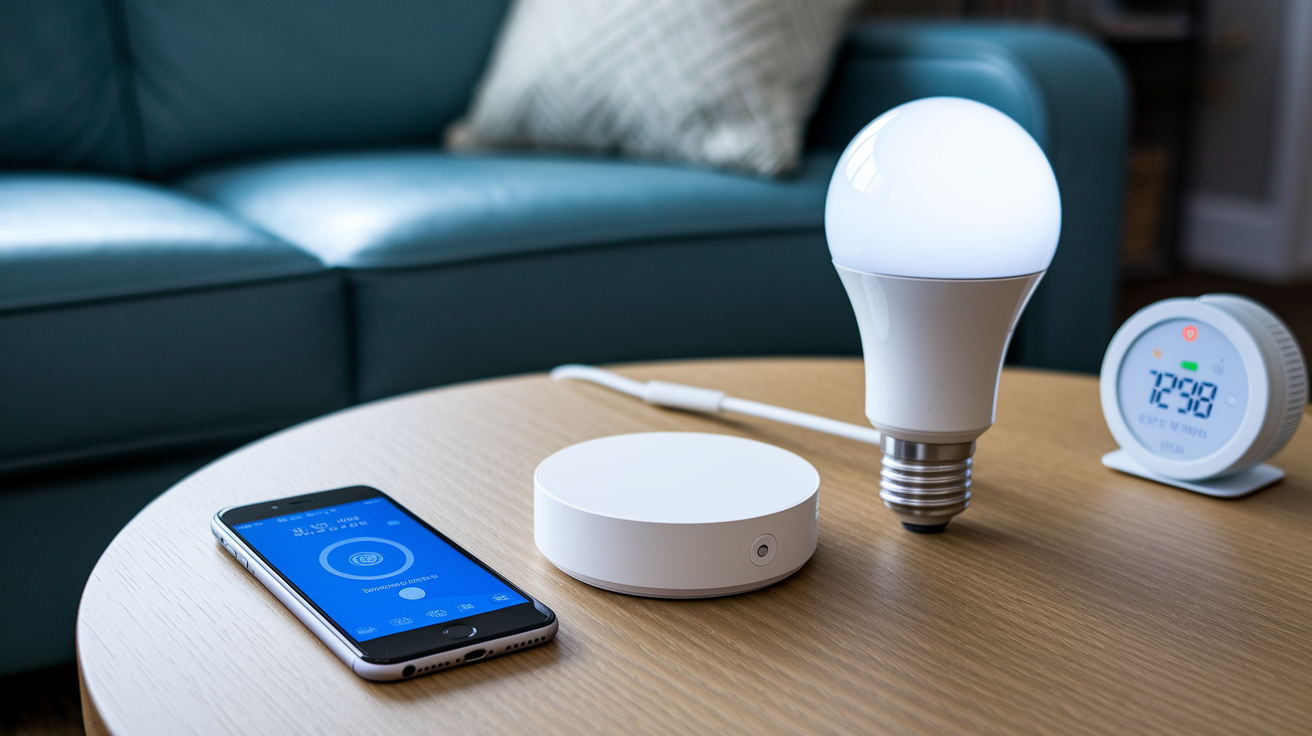


What if your smart devices were more of a tangle than a convenience?
Bad integration leaves you juggling ten apps, laggy automations, and devices that don’t talk to each other.
Done right, a unified smart home feels like one helpful brain that wakes, protects, and saves energy without you thinking about it.
This post walks through the simple checks and steps—compatibility, hubs and protocols (how devices talk), practical automations, and security basics—to get your gadgets working together reliably.
Connecting Multiple Smart Home Devices into One Unified System
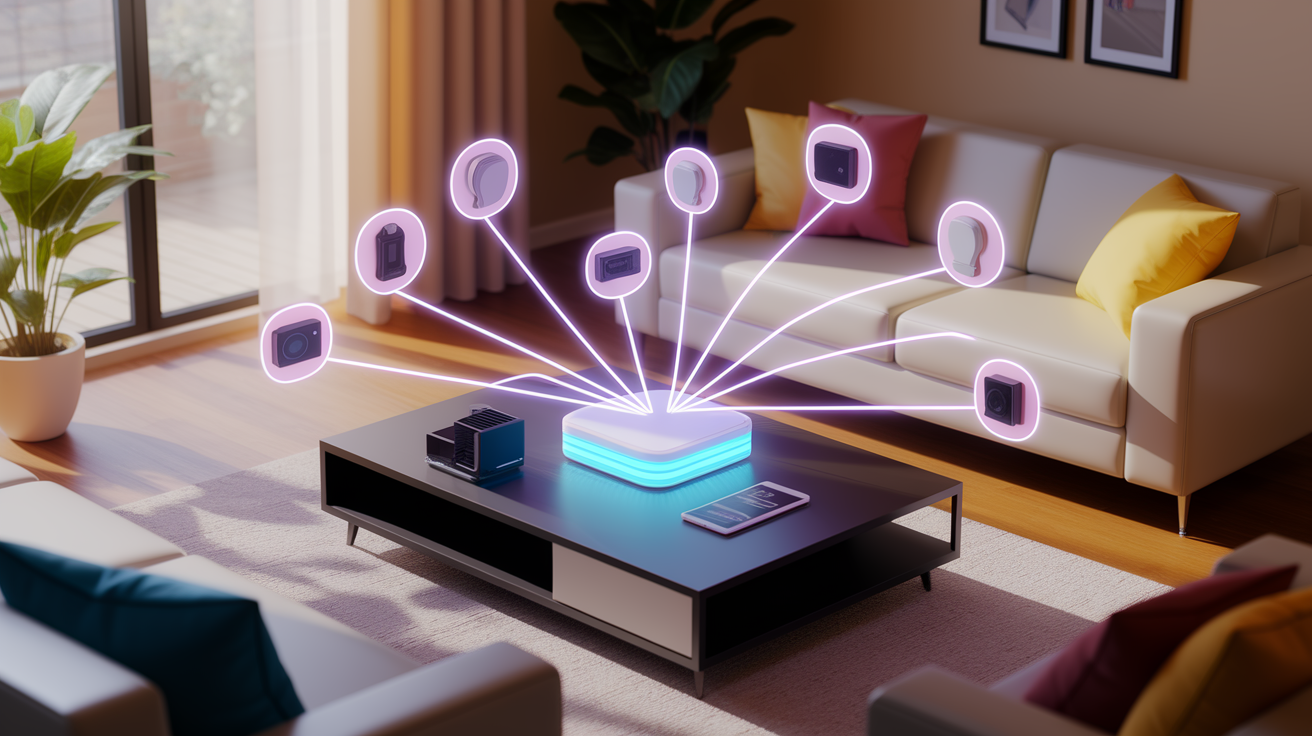
Make sure every device is actually ready before you try linking them together. Get each one onto your Wi-Fi using its own app, double check the firmware is current, and confirm the thing shows up as online. Most integration headaches start because something’s running old software or never got properly registered to your account in the first place.
Pick a central hub or platform that works with most of what you’ve got. Common picks are Amazon Alexa, Google Home, Apple HomeKit, Samsung SmartThings, or local setups like Home Assistant and Hubitat. Open the platform’s app, find the section for pairing or adding devices, and walk through whatever it tells you to do. Some pair right away. Others need you to hold a button or flip the power to put them in pairing mode.
After everything’s added, sort devices into groups that make sense, like rooms or zones. Build a quick test automation. Something basic like “turn on the living room lamp when motion happens” works fine. Trigger it manually and watch if the system does what it’s supposed to. If something doesn’t respond, check that it’s assigned to the right room, permissions are turned on, and any bridge or hub you need is plugged in and connected.
Integration Process in 5 Steps
- Update firmware on everything and make sure Wi-Fi coverage is solid where you’re installing.
- Download the app for whichever platform or hub you picked and get it configured.
- Add each device using pairing mode and approve whatever access it asks for.
- Put devices into rooms or zones and name them clearly so voice commands don’t get confused.
- Create a simple automation rule and test it to see if devices talk to each other and respond quickly.
Understanding Smart Home Compatibility and Ecosystem Requirements
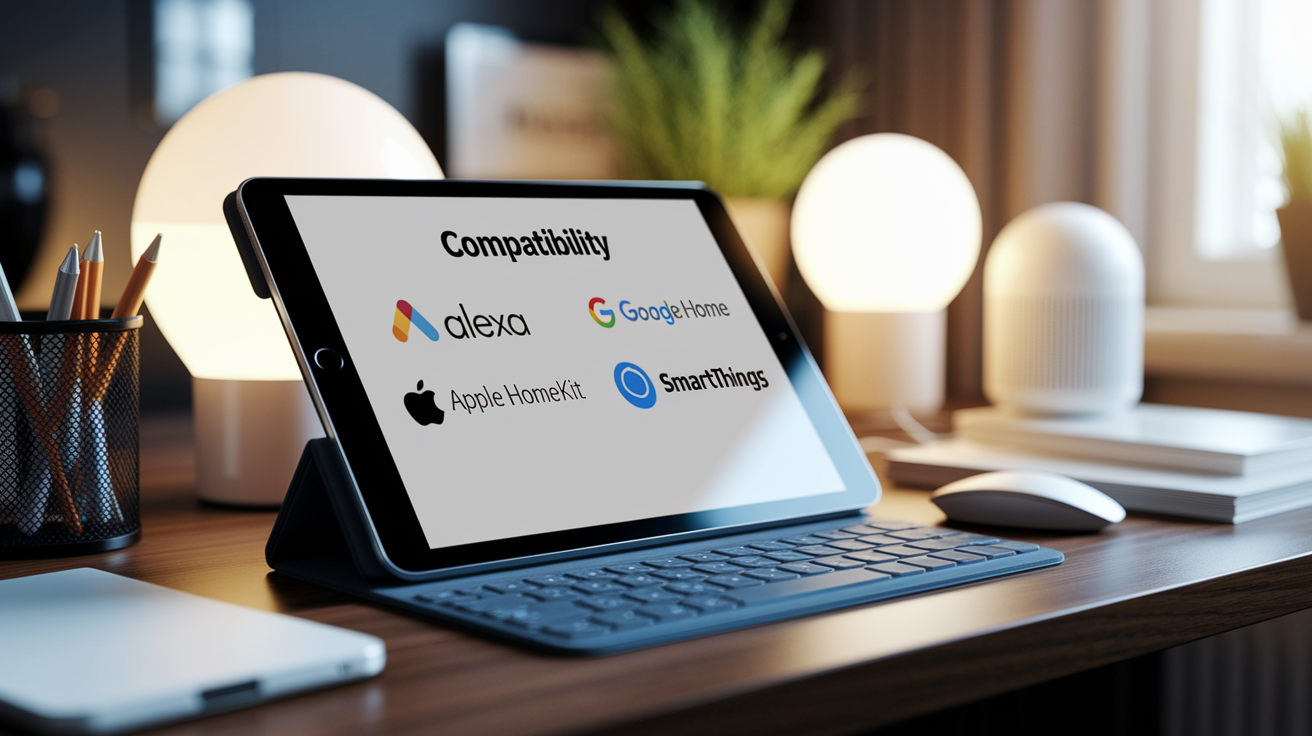
Compatibility comes down to whether devices use the same communication protocol and whether your control platform actually supports them. A smart bulb running Zigbee won’t talk to a Wi-Fi thermostat unless both connect through a hub or app that can translate between the two. Some brand ecosystems lock features to their own gear. Apple HomeKit needs devices with HomeKit certification, and certain Google Nest features only work when you pair them with other Nest stuff.
Cross platform limits show up when companies care more about their own app than letting other systems in. Some devices need cloud to cloud linking, which means you’re depending on the manufacturer’s server being up and sometimes adds lag. Before you buy, confirm the device explicitly supports your chosen platform (Alexa, Google Home, HomeKit, SmartThings) and look at reviews for pairing problems or features that go missing when you control it outside the native app.
Key Integration Protocols: Wi-Fi, Bluetooth, Zigbee, Z-Wave, and Matter

Every smart home device uses at least one wireless standard. The protocol affects range, how much power it uses, whether you need a hub, and how many devices can share the network.
Wi-Fi & Bluetooth
Wi-Fi devices plug straight into your router and usually don’t need a separate hub. They eat more power than mesh protocols and lean on strong bandwidth, which can choke if you’ve got dozens of devices. Bluetooth handles short range pairing, mostly for setup or controlling something from your phone when you’re in the same room. Bluetooth devices typically need a hub or bridge if you want remote access and automation beyond local range.
Zigbee
Zigbee runs on a low power mesh where each device can pass signals to others, stretching range and making things more reliable. You need a compatible hub for Zigbee (SmartThings, Philips Hue Bridge, Echo Plus/Studio, Hubitat). The mesh setup means adding more Zigbee devices often makes the network stronger instead of clogging it up. That’s why Zigbee is popular for sensors, switches, and bulbs in bigger homes.
Z-Wave
Z-Wave uses a different radio frequency than Wi-Fi and Zigbee, so you get less interference and better stability when wireless traffic is heavy. It also builds a mesh and needs a hub (SmartThings, Hubitat, Aeotec). One edge over Zigbee is that certified Z-Wave devices from any manufacturer have to work together, so you’re guessing less about compatibility. Range is similar to Zigbee, and both can handle hundreds of devices on one network.
Matter
Matter is a new unified standard backed by Apple, Google, Amazon, and Samsung. It’s designed to let devices work across platforms without needing proprietary bridges or cloud middlemen. Matter certified devices can be controlled by any Matter compatible app or hub, and a lot of existing platforms are adding Matter support through updates. Adoption is still rolling out, but Matter should eliminate a lot of current compatibility frustration by making manufacturers follow one interoperability spec.
Smart Home Platforms and Hubs for Seamless Integration

A platform or hub is the central brain that takes commands, runs automation rules, and coordinates devices that speak different languages. Amazon Alexa and Google Home are cloud based platforms that work with thousands of devices through voice and app routines, but they need internet and rely on manufacturers building skills. Apple HomeKit offers solid privacy controls and local automation, but device selection is tighter because of strict certification.
Dedicated hubs like Samsung SmartThings, Hubitat, and Home Assistant support multiple protocols (Zigbee, Z-Wave, Wi-Fi) in one box, so you can mix brands and standards without buying separate bridges for each protocol. SmartThings lives mostly in the cloud, which makes setup easier but ties you to Samsung’s servers. Hubitat and Home Assistant focus on local control and can run automations when the internet’s down, which appeals to people who care about privacy and reliability more than cloud convenience.
Pick a platform based on what devices you already have, whether you want voice control or app management, and how much you value local versus cloud operation. If you’re planning to use sensors, switches, and bulbs from different brands, a multi protocol hub will save money and cut down the number of apps you juggle every day.
Automation Examples That Benefit from Integrated Smart Home Technology
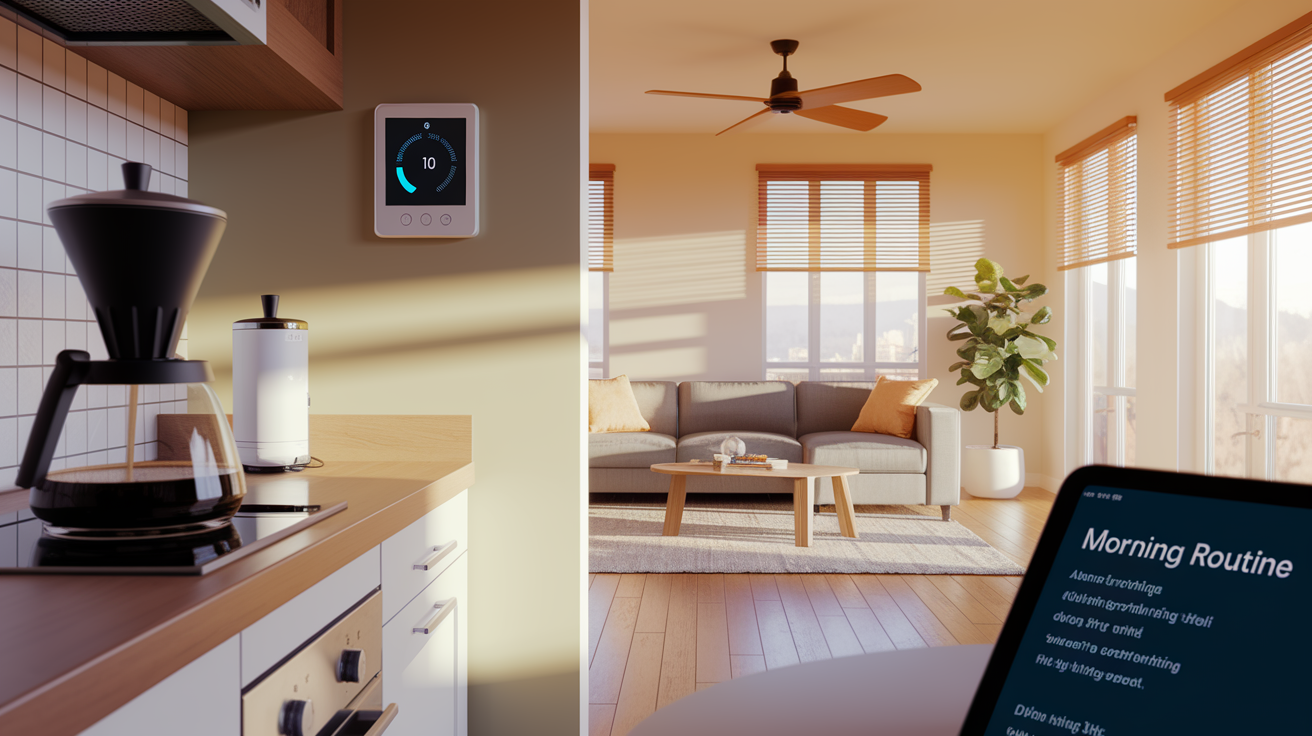
Integrated systems really shine when devices from different categories work together without you lifting a finger. A morning routine can bump the thermostat up two degrees, fire up the coffee maker, and slowly brighten bedroom lights, all from one voice command or a scheduled time. When you leave the house, a geofence automation can lock the smart lock, arm security, dial the thermostat to an energy saving temp, and kill all the lights.
Cross device coordination also helps with security and comfort. A motion sensor picking up movement at the front door after dark can flip on porch lights, ping your phone, and start recording on a camera. A “movie night” scene can dim living room lights, drop motorized blinds, and switch the TV input to streaming with one tap.
Common Multi-Device Automation Examples
- Coordinated lighting and thermostat shifts triggered by sunrise, sunset, or when someone’s home.
- Automated arrival and departure routines that adjust locks, climate, and lighting based on your phone’s location.
- Multi device nighttime security that arms cameras, locks doors, and shuts off all interior lights at a set time.
- Entertainment scenes that dim lights, close shades, and cue audio when you start streaming.
Troubleshooting Integration Problems

When a device quits responding or an automation doesn’t run, start simple. Confirm the device has power, check that Wi-Fi reaches where it’s installed, and make sure it shows “online” in its native app. Weak Wi-Fi is usually the problem. Devices too far from the router or behind thick walls drop offline randomly. Add a mesh access point or move the router to get better coverage in problem spots.
Old firmware can stop devices from pairing or make automations run inconsistently. Open each device’s app and look for updates, then update your hub or platform software too. If a device still won’t pair, try removing it from the platform and adding it fresh, or do a factory reset following the manufacturer’s steps. For automations that trigger at the wrong time or skip steps, review the logic in the platform’s automation editor. Race conditions happen when two rules try to control the same device at once, and wrong trigger settings can make routines fire when you don’t expect them.
Security Considerations for a Connected Smart Home System

Every device you connect is a potential way into your home network, so use strong, unique passwords for every account and turn on two factor authentication wherever it’s offered. Change default credentials right after you install a new hub or camera. Don’t use simple PINs or recycle passwords across services.
Put your smart home devices on a separate Wi-Fi network or VLAN to limit damage if one gets compromised. A lot of routers have a guest network feature. Stick IoT devices there and block access between the guest network and your main network where your computers and phones live. Keep firmware current on all devices, hubs, and routers, and retire anything that stops getting security patches. Turn off remote access features you don’t actually use, and lean toward platforms that support local control or encrypted communication so you’re not relying on third party cloud servers that might store or send data insecurely.
Final Words
You set up devices, updated firmware, picked a hub, matched protocols, and built routines, then tested and tightened security along the way. The article showed how to prepare devices, connect a central platform, check compatibility, choose protocols like Zigbee or Matter, and troubleshoot common issues.
Keep firmware current, use a strong Wi‑Fi network, and re-test automations after changes. With a little routine maintenance, smart home technology integration will make daily life smoother and more secure. You’re on the right track.
FAQ
Q: What is a smart home integration?
A: A smart home integration is combining your smart devices so they work together under one control system—using hubs, apps, or cloud services to enable unified control, synchronized automations, and fewer apps to manage.
Q: What is an example of a smart home technology?
A: An example of a smart home technology is a smart thermostat (like Nest). It controls heating and cooling, learns schedules to save energy, and integrates with lights, voice assistants, and security devices.
Q: What are the 4 smart devices?
A: The four common smart devices are smart speakers (voice control), smart lights, smart thermostats, and security cameras—covering control, lighting, climate, and home safety in most setups.
Q: What technology connects multiple smart home devices?
A: The technology that connects multiple smart home devices is a mix of communication protocols (Wi-Fi, Bluetooth, Zigbee, Z-Wave, Matter) plus a central hub or platform that links devices and runs automations.